 AI Tools Review Editorial Team
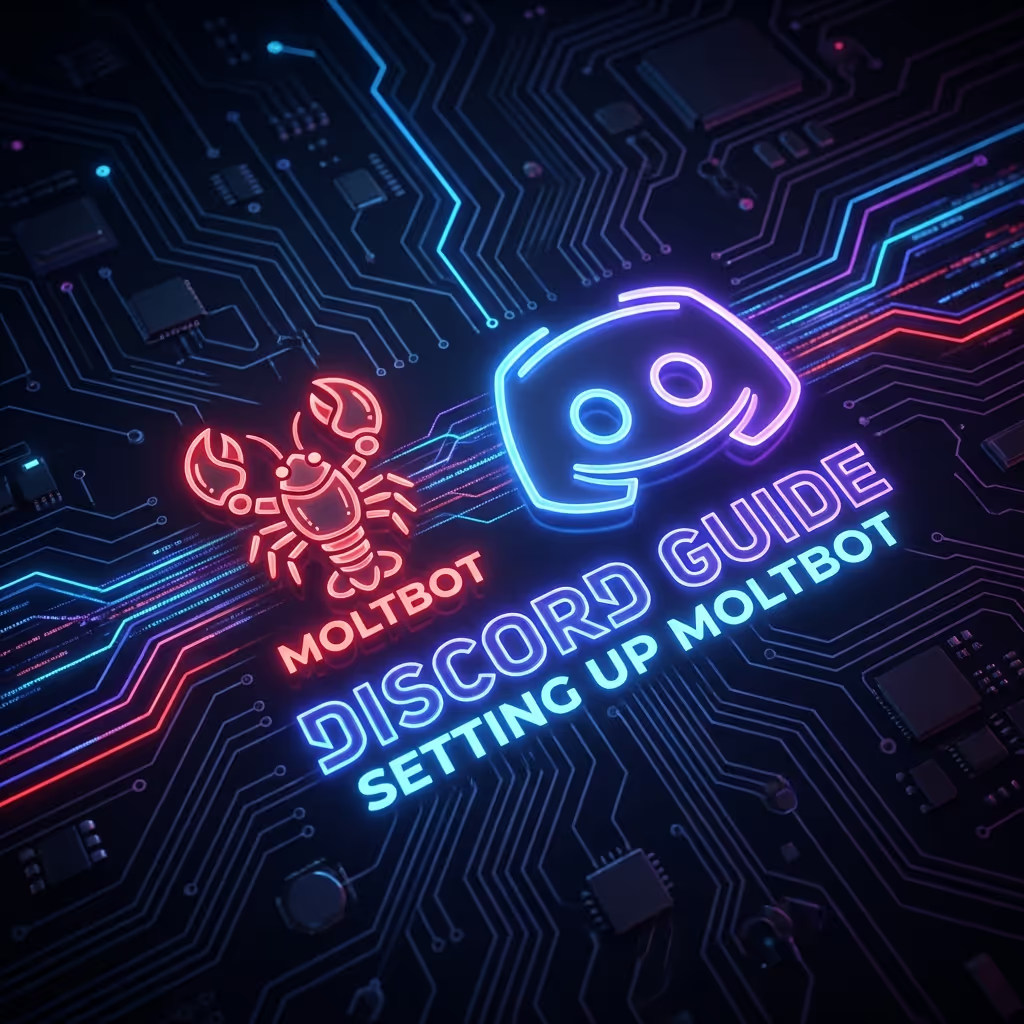
Discord provides the ultimate platform for team-based AI interaction. By connecting Moltbot to the official Discord Gateway, a server can be transformed into a command center for ambient agency.
From private DMs to large guild text channels, this guide details the precise configurations needed to enable the Discord channel, manage privileged intents, and lock down access via IDs.
Security Notice
Setting up a messaging integration involves security-sensitive configurations including bot tokens, access controls, and permissions. Always verify configurations against the official documentation and follow security best practices. For the most up-to-date and authoritative guidance, consult the official Moltbot Channels documentation.
Moltbot on Discord
The Discord channel is production-ready for both DM and guild text channels via the official Discord bot gateway. It supports native threading, reactions, and file uploads, while maintaining deterministic routing, ensuring replies always stay within the triggering channel.
High-Level Features
- Native Slash Commands
- Thread-aware messaging
- Guild context history (Last 20 msgs)
- Media upload support (up to 8MB)
- Per-channel skill gating
- Developer ID-based allowlists
- DM pairing policy (secure by default)
- Per-guild/channel tools & prompts
Quick Setup (Beginner)
- 1
Create a Discord Bot
Go to the Discord Developer Portal, create an application, and copy the bot token.
- 2
Enable Gateway Intents
In app settings, enable Message Content Intent (and Server Members Intent if allowlists or name lookups are planned).
- 3
Set the Token
Via environment:
DISCORD_BOT_TOKEN=...
Or via config:channels.discord.token: "..."
(If both are set, config takes precedence; env fallback is default-account only.) - 4
Invite the Bot
Invite the bot to a server with message permissions (create a private server if only DMs are needed).
- 5
Start the Gateway
DM access is pairing by default; approve the pairing code on first contact.
Minimal Config
{
  "channels": {
    "discord": {
      "enabled": true,
      "token": "YOUR_BOT_TOKEN"
    }
  }
}
How It Works
Session Routing
Direct chats collapse into the agent's main session (agent:main:main).
Guild channels stay isolated as agent:<agentId>:discord:channel:<channelId> (display names use discord:<guildSlug>#<channelSlug>).
Group DMs
Group DMs are ignored by default. Enable via channels.discord.dm.groupEnabled and optionally restrict by channels.discord.dm.groupChannels.
Deterministic Routing
Replies always go back to the channel they arrived on.
Developer Portal Configuration
- 1
Create the Discord App + Bot User
Discord Developer Portal → Applications → New Application.
Navigate to Bot → Add Bot. Copy the Bot Token. - 2
Enable Gateway Intents
In Bot → Privileged Gateway Intents, enable:
✓ Message Content Intent (required to read message text in most guilds).
✓ Server Members Intent (recommended; required for member lookups and allowlist matching). - 3
Get IDs (Developer Mode)
In Discord client, enable Developer Mode (User Settings → Advanced). Right-click: Server name → Copy Server ID (guild id), Channel → Copy Channel ID, User → Copy User ID.
Privileged Intents Warning
Critical Gateway Intents
Discord blocks "privileged intents" unless they are explicitly enabled in the portal. Without these, the bot will connect but never "see" or "reply" to messages. Look for "Used disallowed intents" errors.
- 1. MESSAGE CONTENT INTENT:Required to read the text of messages in servers. Enable this immediately.
- 2. SERVER MEMBERS INTENT:Recommended. Required for user/member lookups and allowlist matching in larger guilds.
Found in Bot → Privileged Gateway Intents. Presence Intent is usually not needed.
Invite URL & Permissions
To invite the bot, use the OAuth2 URL Generator in the portal. Generate an invite URL with:
Scopes
botapplications.commands(required for native commands)
Bot Permissions (Minimal Baseline)
- View Channels
- Send Messages
- Read Message History
- Embed Links / Attach Files
- Add Reactions (optional but recommended)
- Use External Emojis/Stickers (optional)
Avoid granting Administrator unless debugging, and fully trust the bot.
DM Access & Pairing
By default, Moltbot protects Discord DMs using the Pairing Policy. Unknown senders who DM the bot receive a pairing code (expires after 1 hour); approve via CLI.
The DM Handshake
Unknown users who DM the bot receive a 4-digit code. Approve them via the CLI:
moltbot pairing approve discord <CODE>
Policy Options:
dm.policy: "pairing"(default, recommended)dm.policy: "open"+dm.allowFrom: ["*"]open to anyonedm.policy: "allowlist"+dm.allowFrom: ["userId"...]hard allowlistdm.policy: "disabled"ordm.enabled: falseignore all DMs
Guild & Channel Allowlists
Moltbot offers granular per-guild and per-channel controls. Restrict which channels the bot listens to and apply custom system prompts for specific areas.
{
  "channels": {
    "discord": {
      "enabled": true,
      "dm": { "enabled": false },
      "guilds": {
        "YOUR_GUILD_ID": {
          "users": ["YOUR_USER_ID"],
          "requireMention": true,
          "channels": {
            "help": {
              "allow": true,
              "requireMention": true,
              "systemPrompt": "Keep answers short."
            }
          }
        }
      },
      "retry": {
        "attempts": 3,
        "minDelayMs": 500,
        "maxDelayMs": 30000,
        "jitter": 0.1
      }
    }
  }
}
Key Notes:
requireMention: truemeans the bot only replies when mentioned (recommended for shared channels).- If
channelsis present under a guild, any channel not listed is denied by default. - Use a
"*"channel entry to apply defaults across all channels; explicit entries override the wildcard. - Threads inherit parent channel config unless the thread channel id is added explicitly.
- Bot-authored messages are ignored by default; set
allowBots: trueto allow them.
Slash Commands & UI
Moltbot natively supports Discord Slash Commands. On startup, it automatically syncs Moltbot's internal command architecture with Discord's application commands UI.
Key Details:
- Native commands use isolated session keys (
agent:<agentId>:discord:slash:<userId>) rather than the shared main session. - Control native command registration via
commands.native(default "auto", can betrue,false). - Commands honor the same allowlists as DMs/guild messages.
- Slash commands may be visible in Discord UI to users who aren't allowlisted; Moltbot enforces allowlists on execution and replies "not authorized".
Guild Context History
In shared guild channels, context is paramount. When Moltbot is mentioned, it includes the last 20 messages from that channel as context (historyLimit: 20). This allows the agent to understand who was talking and the current conversation topic before formulating a reply. Set 0 to disable.
Full Config Reference
{
  "channels": {
    "discord": {
      "enabled": true,
      "token": "abc.123",
      "groupPolicy": "allowlist",
      "mediaMaxMb": 8,
      "textChunkLimit": 2000,
      "chunkMode": "length",
      "maxLinesPerMessage": 17,
      "historyLimit": 20,
      "replyToMode": "off",
      "actions": {
        "reactions": true,
        "stickers": true,
        "emojiUploads": true,
        "polls": true,
        "permissions": true,
        "messages": true,
        "threads": true,
        "pins": true,
        "search": true,
        "memberInfo": true,
        "roleInfo": true,
        "roles": false,
        "channelInfo": true,
        "channels": true,
        "voiceStatus": true,
        "events": true,
        "moderation": false
      },
      "dm": {
        "enabled": true,
        "policy": "pairing",
        "allowFrom": ["123456789012345678"],
        "groupEnabled": false,
        "groupChannels": []
      },
      "guilds": {
        "*": { "requireMention": true },
        "123456789012345678": {
          "slug": "friends-of-moltbot",
          "requireMention": false,
          "reactionNotifications": "own",
          "users": ["987654321098765432"],
          "channels": {
            "general": { "allow": true },
            "help": {
              "allow": true,
              "requireMention": true,
              "users": ["987654321098765432"],
              "skills": ["search", "docs"],
              "systemPrompt": "Keep answers short."
            }
          }
        }
      },
      "retry": {
        "attempts": 3,
        "minDelayMs": 500,
        "maxDelayMs": 30000,
        "jitter": 0.1
      }
    }
  }
}
Tool Actions
The agent can call the discord tool with actions like:
| Action Group | Default | Notes |
|---|---|---|
| reactions | ✅ enabled | React + list reactions |
| messages | ✅ enabled | Read/send/edit/delete |
| threads | ✅ enabled | Create/list/reply |
| pins | ✅ enabled | Pin/unpin/list |
| channels | ✅ enabled | Channel/category management |
| roles | ❌ disabled | Role add/remove |
| moderation | ❌ disabled | Timeout/kick/ban |
Troubleshooting
First: run moltbot doctor and moltbot channels status --probe for actionable warnings.
Capabilities & Limits
Messaging
- DMs and guild text channels (threads as separate channels)
- Message chunking at
textChunkLimit(default 2000) - Tall replies split by line count (
maxLinesPerMessage, default 17)
Media
- File uploads up to
mediaMaxMb(default 8 MB) - Reply context injected when a message references another (quoted content + ids)
Retry Policy
- Outbound Discord API calls retry on rate limits (429) using
retry_afterwith exponential backoff - Configure via
channels.discord.retry
Limitations
- Voice channels not supported
- Native reply threading off by default (
replyToMode)
Safety & Ops
- Treat the bot token like a password; prefer
DISCORD_BOT_TOKENenv var on supervised hosts or lock down config file permissions. - Only grant the bot permissions it needs (typically Read/Send Messages).
- If the bot is stuck or rate limited, restart the gateway (
moltbot gateway --force) after confirming no other processes own the Discord session.
Conclusion
Setting up Moltbot with Discord bridges the gap between private productivity and community automation. By mastering the Developer Portal and leveraging Moltbot's granular ID-based allowlists, a secure, context-aware AI assistant can be built that feels like a native member of any Discord server.
Ready to level up? Explore the guides for WhatsApp and Telegram to complete the multi-channel personal assistant deployment.