
 AI Tools Review Editorial Team
OpenClaw iMessage is the definitive open-source standard for action-oriented AI agents. Unlike traditional chatbots that merely generate text, OpenClaw is designed to act, clearing your inbox, managing your calendar, and even checking you in for flights, all from the messaging apps you already use.
By bridging the gap between large language models and your local system, OpenClaw transforms your messaging apps into a powerful command center for your digital life. Born from the legacy of "Clawdbot," this new iteration brings enterprise-grade reliability and deep system integration to the open-source community.
What is OpenClaw iMessage?
OpenClaw (formerly known as Clawdbot) is a privacy-first, self-hosted AI agentic gateway. It operates as a persistent "Personal OS" that resides on your hardware, be it a Mac Mini, a Linux server, or your primary workstation. It acts as an ambient layer of intelligence that is always ready to execute tasks on your behalf.
The iMessage integration is particularly powerful for Apple users, as it allows for native, end-to-end encrypted communication with your agent. Whether you're on your iPhone, iPad, or Mac, OpenClaw is just a text away. Unlike simpler bots that rely on webhooks, OpenClaw hooks directly into the local `chat.db` database on macOS, providing a robust and practically latency-free interface.
Why "Action-Oriented"?
Most AI today is stuck in a box. You ask a question, it gives an answer. OpenClaw breaks the box. It doesn't just tell you how to book a flight; it goes to the airline's website and does it for you. This is the shift from Chat AI to Agentic AI.
Key Features of OpenClaw
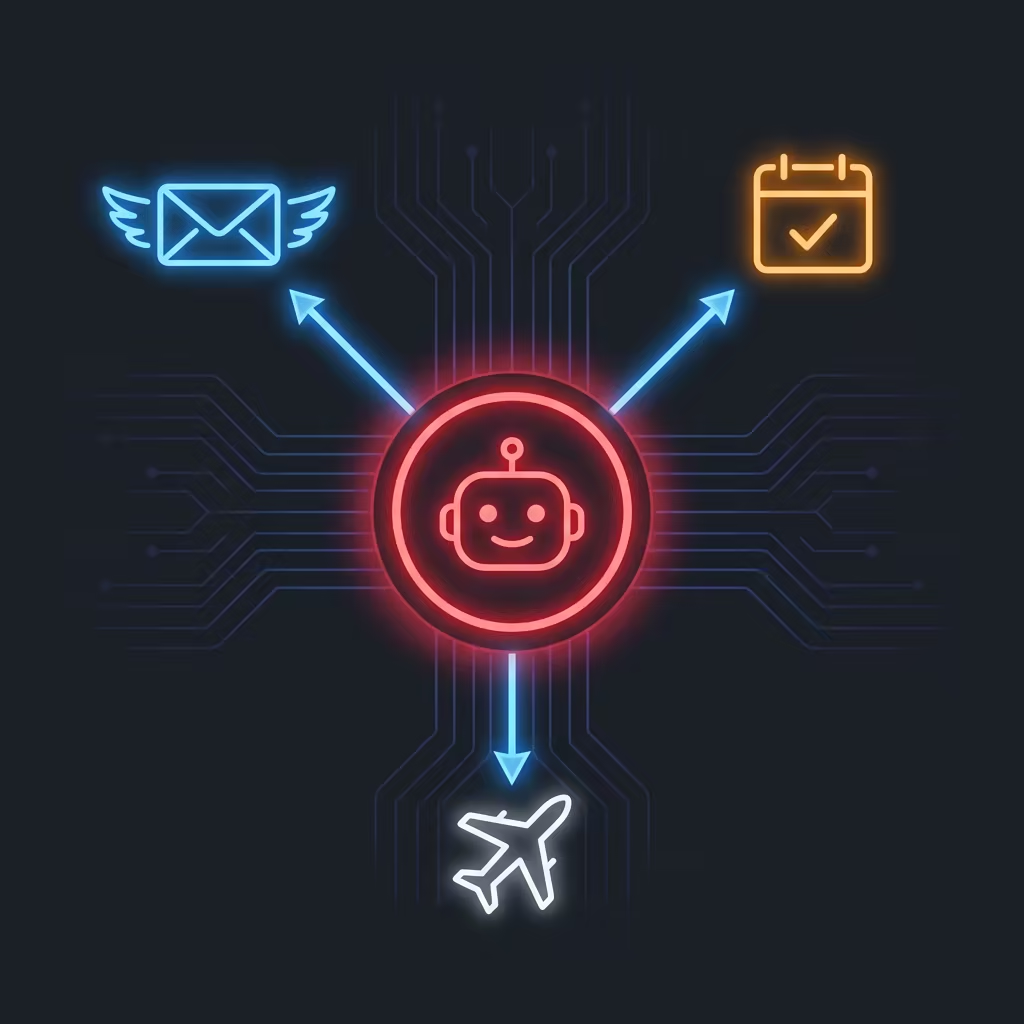
OpenClaw is built on a modular architecture that enables a wide range of capabilities through "Skills." Here are the core features that make it a game-changer for productivity:
Inbox Triage
Automatically filters spam, summarizes urgent emails, and handles unsubscribing.
Calendar Management
Schedules meetings, checks availability, and resolves conflicts across multiple calendars.
Travel Logistics
Checks flight statuses, performs check-ins, and manages hotel bookings autonomously.
Beyond these core features, the OpenClaw community has developed hundreds of skills for everything from controlling your smart home to managing complex software deployments via SSH. For a broader look at the ecosystem, read our guide on What is OpenClaw?.
Hardware Requirements
Because iMessage is a proprietary Apple protocol, the gateway component responsible for sending and receiving messages must run on Apple hardware.
Prerequisites
- Hardware: A Mac (Mac Mini, MacBook Air/Pro, or iMac). It does not need to be the latest model; an M1 Mac Mini is the community favorite for dedicated servers.
- Software: macOS 13 (Ventura) or newer is recommended.
- Accounts: Must be signed in to iMessage.
- Permissions: The process requires Full Disk Access to read the Messages database (`chat.db`) and Automation permissions to send messages via AppleScript/events.
Installation & Quick Setup
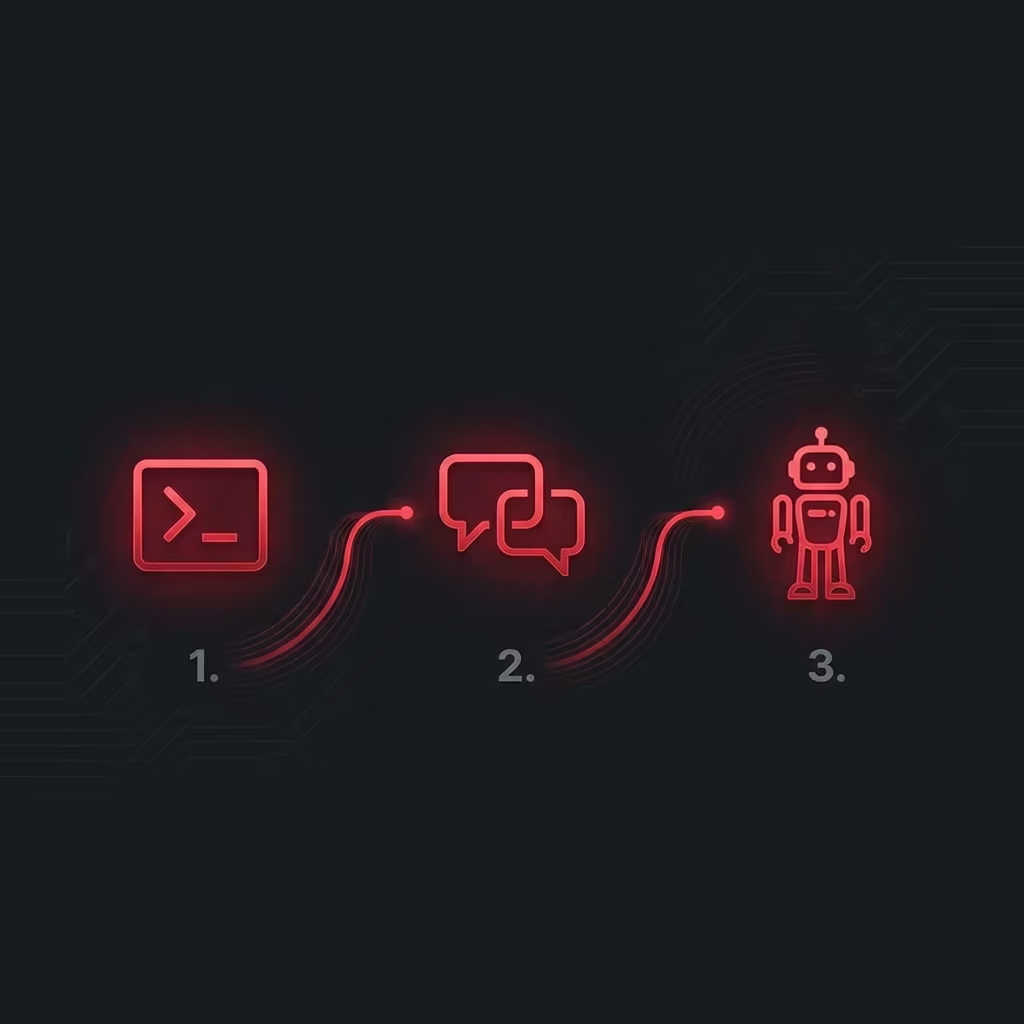
For the fastest start, we will set up the OpenClaw Gateway on the same Mac that you use for iMessage. This is known as the "local" configuration.
Step 1: Install the CLI Tool
OpenClaw interfaces with iMessage via a specialized CLI tool called `imsg`. This tool handles the low-level communication with the macOS internal databases and services.
Step 2: Configure OpenClaw
Edit your `config.json` (or `openclaw.json`) to enable the iMessage channel. You need to point it to the binary you just installed and your user's chat database.
Step 3: Start and Approve
Start your OpenClaw instance. macOS will prompt you for permissions:
- "imsg" would like to access your messages: Click Allow. This grants read access to `chat.db`.
- "imsg" wants to control "Messages": Click Allow. This grants write/send capabilities.
Advanced Configuration
For power users, running a bot on your personal iMessage account can be messy. You might want a dedicated identity for your agent, or you might want to run the heavy AI workloads on a Linux server while using the Mac only as a communications bridge.
Dedicated Bot Identity
To keep your personal chats clean, create a dedicated Apple ID (e.g. `[email protected]`) and a dedicated macOS user account on your machine.
- Create a new macOS user (e.g. `openclawhome`).
- Sign into this user and log in to Messages with the bot's Apple ID.
- Enable Remote Login in System Settings > General > Sharing. This allows you to SSH into this user from your main account.
- Create an SSH wrapper script that OpenClaw will use to run `imsg` as the bot user:#!/usr/bin/env bash set -euo pipefail # Run 'ssh <bot-user>@localhost true' once manually to accept host keys exec /usr/bin/ssh -o BatchMode=yes -o ConnectTimeout=5 -T <bot-user>@localhost \ "/usr/local/bin/imsg" "$@"
- Update your `config.json` to use this wrapper. Note the `accounts` nested structure, which is required when dealing with multi-identity setups.{ channels: { imessage: { enabled: true, accounts: { bot: { name: "Bot", enabled: true, cliPath: "/path/to/imsg-bot-wrapper", dbPath: "/Users/<bot-user>/Library/Messages/chat.db", }, }, }, }, }
Remote Access & SSH Partitioning
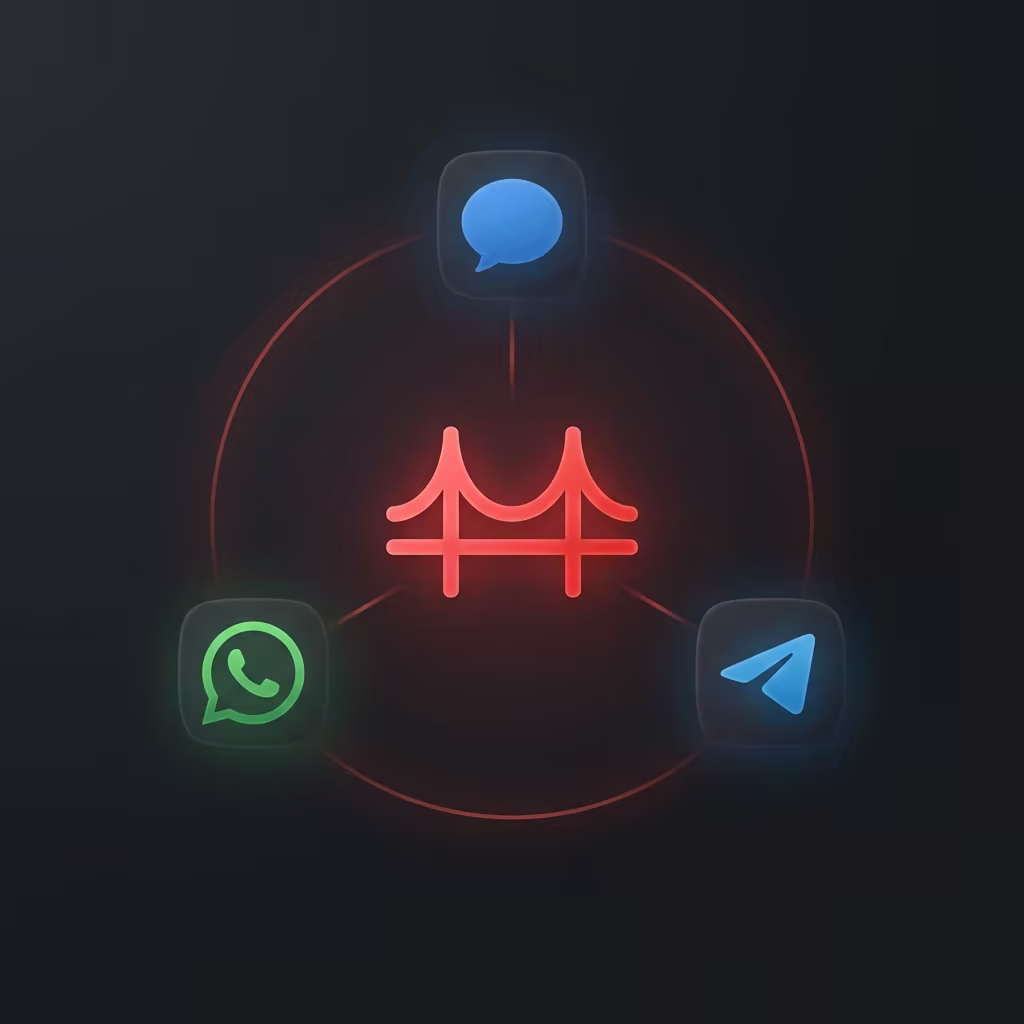
A common architectural pattern is to run the OpenClaw Gateway on a beefy Linux server (with GPUs for local LLM inference) while keeping a lightweight Mac Mini solely for iMessage connectivity. OpenClaw supports this natively via SSH tunneling and SCP for attachments.
Tailscale Bridge
The easiest way to bridge a Linux server and a Mac is Tailscale. It creates a private, encrypted mesh network between your devices, eliminating the need for port forwarding.
Gateway Host (Linux)
- Runs OpenClaw Gateway
- Has `imsg-ssh` wrapper script
- SSH Key authenticated to Mac
Bridge Host (Mac)
- Runs Messages.app
- Remote Login (SSH) Enabled
- Tailscale IP: `100.x.y.z`
Configuration:
Note: The `remoteHost` field instructs OpenClaw to use SCP to fetch image and file attachments from the remote Mac. Without this, the gateway will try (and fail) to read the file paths locally.
Access Control & Security
Opening up an AI agent to the worldand specifically to your personal phone numberis a security critical operation. OpenClaw provides robust layers of protection.
DM Policy: Pairing vs Allowlist
By default, OpenClaw uses a Pairing Mode (`dmPolicy: "pairing"`).
- Pairing (Default): When an unknown user messages your bot, the bot ignores them but generates a secure pairing code in the logs. You must run `openclaw pairing approve <CODE>` to authorize that user. This prevents random spam from consuming your LLM credits.
- Allowlist: For strict control, you can set `dmPolicy: "allowlist"` and explicitly list authorized handles (phone numbers or emails) in `allowFrom`.
Group Policy
Groups are more complex. You typically don't want the bot responding to every message in a busy family group chat.
Recommended Configuration:
The `requireMention` setting significantly reduces cost and noise. OpenClaw monitors the chat stream but only triggers the LLM inference when it detects a relevant pattern or explicit mention.
Technical Deep Dive
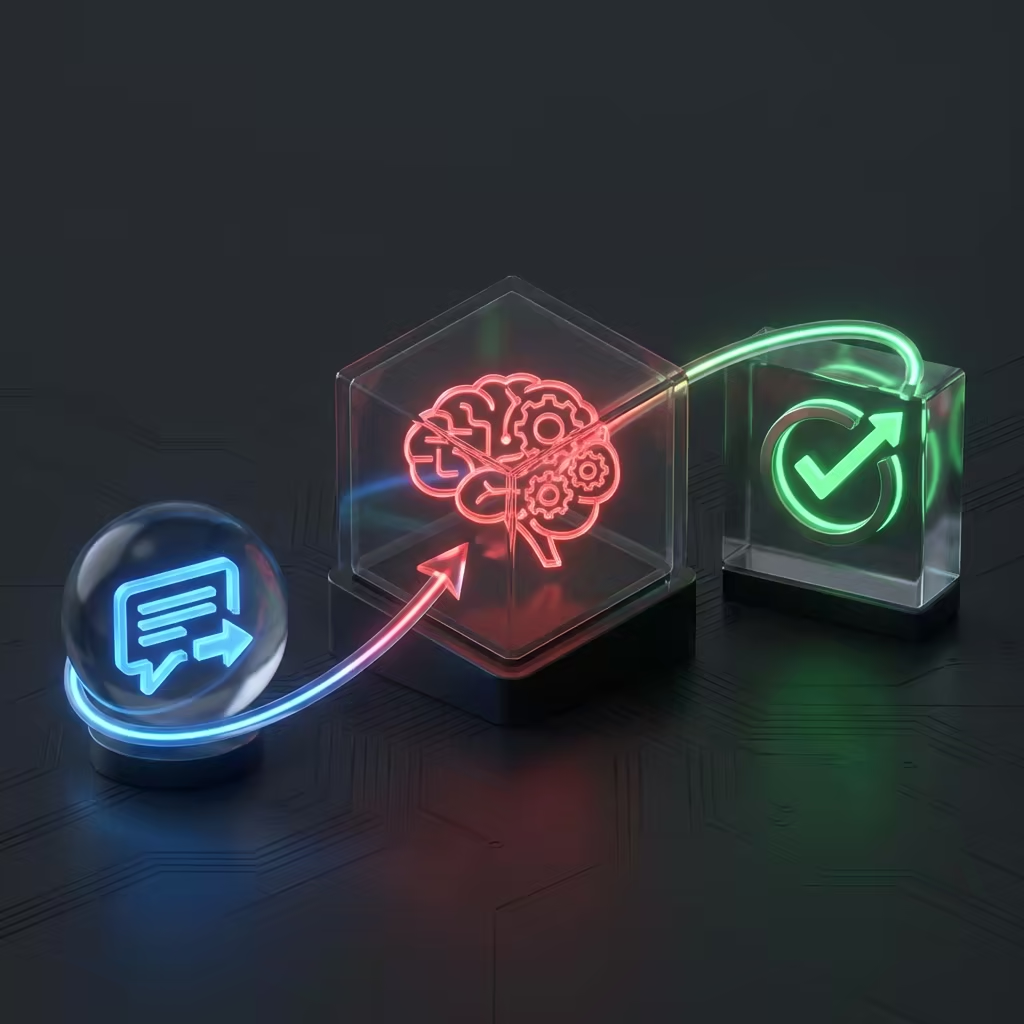
Understanding the constraints and internal logic of the iMessage channel helps in building reliable automations.
Addressing
iMessage uses multiple identifiers. The most stable is `chat_id` (e.g. `chat512`), which persists locally. Handles (email/phone) are good for DMs. GUIDs are globally unique but cumbersome. OpenClaw normalizes these to `chat_id` for session routing.
Limits & Chunking
Apple imposes soft limits on message length. OpenClaw automatically chunks outbound text to 4000 characters. Use `chunkMode: "newline"` to respect paragraph boundaries, ensuring code blocks aren't split mid-line.
Configuration Reference
| Option | Default | Description |
|---|---|---|
| cliPath | - | Path to `imsg` binary or wrapper script. |
| remoteHost | auto | SSH connection string for SCP attachments (e.g. `user@host`). |
| dmPolicy | "pairing" | Control flow for new DMs: `pairing`, `allowlist`, or `open`. |
| mediaMaxMb | 16 | Max size for inbound/outbound media in MB. |
Ready to Build Your Agent?
Stop chatting and start doing. OpenClaw iMessage is more than an assistant, it's your digital colleague that works where you talk.