 AI Tools Review Editorial Team
One of the most powerful features of Moltbot (formerly Clawdbot) is its ability to integrate seamlessly with iMessage, Apple's native messaging platform. This integration allows you to interact with your AI assistant through the familiar blue chat bubbles on your iPhone, iPad, or Mac.
This comprehensive guide walks you through every aspect of setting up Moltbot with iMessage, from basic configuration to advanced remote deployments using SSH and Tailscale.
Security Notice
Setting up a messaging integration involves security-sensitive configurations including bot tokens, access controls, and permissions. Always verify configurations against the official documentation and follow security best practices. For the most up-to-date and authoritative guidance, consult the official Moltbot Channels documentation.
What does Moltbot do?
At its core, Moltbot transforms your existing messaging apps into a command center for your digital life. It functions as a persistent, 24/7 AI agent that doesn't just "chat", it acts. By living inside the communication tools you already use every day, it eliminates the cognitive overhead of switching between disconnected AI interfaces and your actual work.
Automation
Executes multi-step workflows, manages files, and controls local systems.
Communication
Bridges multiple chat platforms into a single intelligent interface.
Sovereignty
Runs on your hardware, ensuring your keys, memory, and data stay yours.
The Multichannel Gateway
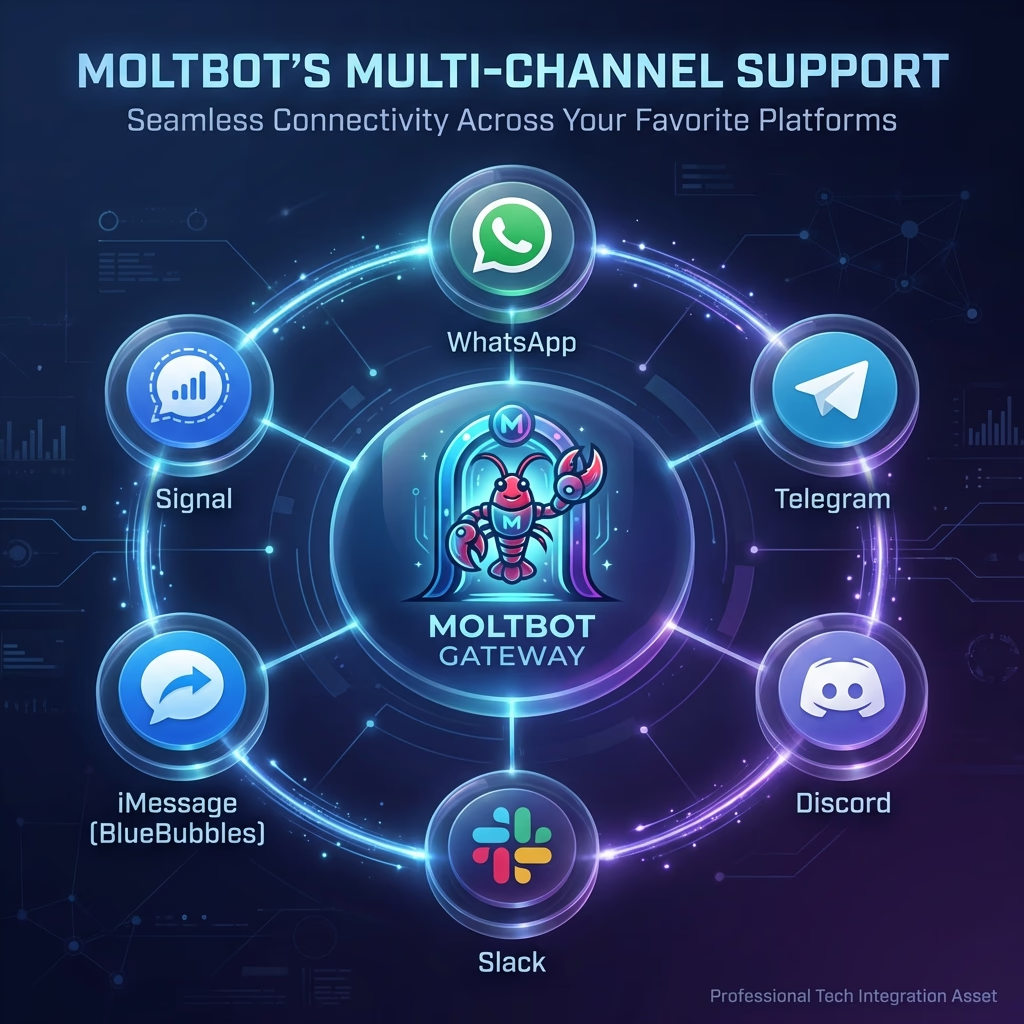
Moltbot can talk to you on almost any chat app you already use. Each "channel" connects via the Gateway, a central routing hub that normalizes incoming text and media. While technical support varies (text is universal, whereas media and reactions depend on the specific channel adapter), the experience remains consistent across platforms.
| Channel | Integration Method / Features |
|---|---|
| Uses Baileys; requires QR pairing. The most popular mobile interface. | |
| Telegram | Bot API via grammY. Supports groups; very fast setup with a bot token. |
| Discord | Full Discord Bot API support for servers, channels, and DMs. |
| iMessage (BlueBubbles) | Highly Recommended: Uses the BlueBubbles macOS server REST API. Supports edits, unsends, effects, reactions, and group management. |
| iMessage (Native) | macOS only; native integration via imsg. This guide focuses on this legacy/native path. |
| Signal | Privacy-focused DMs via signal-cli integration. |
| Slack / Google Chat | Professional integrations via Bolt SDK and HTTP webhooks. |
| Self-Hosted / Web | Nextcloud Talk, Matrix, Mattermost, and native WebChat UI. |
| Decentralized / Niche | Nostr (NIP-04), Tlon (Urbit), Twitch (IRC), Zalo, and LINE. |
Pro Tip: Channels can run simultaneously. You can configure multiple platforms and Moltbot will intelligently route responses per chat session.
Method 1: BlueBubbles (Recommended)
BlueBubbles is currently the most robust way to bridge Moltbot with iMessage. It allows Moltbot to interact with Apple's Messages framework via a stable REST API, supporting advanced features like reactions, message edits, unsends, and high-fidelity media handling.
BlueBubbles Architecture
This method requires a macOS device (physical or virtual) to serve as the server. Moltbot connects to this server over the network.
- BlueBubbles Server: Runs on macOS, interprets the iMessage database.
- Private API: Optional but recommended for sending effects and reactions.
- Moltbot Gateway: Acts as a client to the BlueBubbles API.
Step 1: Install BlueBubbles Server
Download and install the BlueBubbles Server on your macOS host. During setup, you'll need to create a Firebase project to handle the push notifications that wake up the system.
Tip: Ensure you grant Full Disk Access to BlueBubbles in System Settings → Privacy & Security.
Step 2: Configure Moltbot Integration
In your Moltbot configuration, enable the BlueBubbles channel and provide your server details. You can find your API password in the BlueBubbles Server settings under the "API" tab.
{
  "channels": {
    "bluebubbles": {
      "enabled": true,
      "address": "http://192.168.1.50:1234",
      "password": "your-api-password",
      "webhookUrl": "http://moltbot-host:4444/bluebubbles"
    }
  }
}
Step 3: Register the Webhook
For real-time message receiving, you must point BlueBubbles to Moltbot's webhook endpoint. In the BlueBubbles Server UI, navigate to Settings → Webhooks and add your Moltbot gateway address.
Method 2: Native CLI (Legacy)
The native iMessage channel is an external CLI integration that works through a command-line tool called imsg. While simpler to set up for a single local Mac, it is less feature-rich than BlueBubbles and lacks support for modern iMessage features like reactions and tapbacks.
Quick Setup (iMsg CLI)
For Mac users who want to get started quickly using the CLI method, follow these steps:
Step 1: Sign into Messages
Ensure Messages is signed in on this Mac with the Apple ID you want to use.
Step 2: Install imsg
Install the imsg CLI tool via Homebrew:
brew install steipete/tap/imsg
Step 3: Configure Moltbot
Add this minimal configuration to your Moltbot config:
{
  "channels": {
    "imessage": {
      "enabled": true,
      "cliPath": "/usr/local/bin/imsg",
      "dbPath": "/Users/<you>/Library/Messages/chat.db"
    }
  }
}
Replace <you> with your actual macOS username.
Step 4: Start the Gateway
Start the gateway and approve macOS prompts for Full Disk Access and Automation permissions.
moltbot gateway
That's it! You can now send messages to yourself via iMessage, and Moltbot will respond.
Requirements & Permissions
Messaging integrations on macOS are unique because they tap into the native chat.db database. This requires specific system-level permissions that aren't typical for standard web services.
Essential Permissions
- Full Disk Access: Must be granted to your Terminal, Moltbot binary, AND (if using Method 1) the BlueBubbles Server app. This allows reading the
Library/Messages/chat.dbfile. - Automation: When Moltbot or
imsgsends its first message, macOS will pop up a dialog asking for permission to control "System Events" or "Messages". You must approve this. - Always-On Mac: Since iMessage routing happens on Apple hardware, whichever Mac you use as your bridge must remain awake and signed into iCloud.
| Requirement | Details |
|---|---|
| macOS | Messages must be signed in with valid Apple ID |
| Full Disk Access | Required for both Moltbot and imsg to read Messages database |
| Automation Permission | Granted when sending first message via Messages |
| CLI Path | Can point to any command that proxies stdin/stdout (including SSH wrappers) |
Configuration Writes
By default, iMessage is allowed to write configuration updates triggered by /config set|unset commands (requires commands.config: true).
If you want to prevent configuration changes via iMessage, disable this feature:
{
  "channels": {
    "imessage": {
      "configWrites": false
    }
  }
}
Dedicated Bot User Setup (Optional)
If you want the bot to send messages from a separate iMessage identity (keeping your personal Messages clean), create a dedicated macOS user.
Why Use a Dedicated User?
- Separate Apple ID for your bot
- Isolated identity and contact information
- Clean separation from personal messages
- Professional bot identity for shared use
Setup Steps
- Create a dedicated Apple ID (e.g.
[email protected])Apple may require a phone number for verification/2FA
- Create a macOS user (e.g.
clawdshome) and sign into it - Open Messages in that user and sign into iMessage using the bot Apple ID
- Enable Remote Login: System Settings → General → Sharing → Remote Login
- Install imsg in the bot user account:
brew install steipete/tap/imsg
- Set up SSH so
ssh <bot-macos-user>@localhost trueworks without password - Create an SSH wrapper script (e.g.
/path/to/imsg-bot):#!/usr/bin/env bash set -euo pipefail # Run interactive SSH once first to accept host keys: # ssh <bot-macos-user>@localhost true exec /usr/bin/ssh -o BatchMode=yes -o ConnectTimeout=5 -T <bot-macos-user>@localhost \ "/usr/local/bin/imsg" "$@"
- Make the script executable:
chmod +x /path/to/imsg-bot
- Configure Moltbot to use the multi-account setup:
{
  "channels": {
    "imessage": {
      "enabled": true,
      "accounts": {
        "bot": {
          "name": "Bot",
          "enabled": true,
          "cliPath": "/path/to/imsg-bot",
          "dbPath": "/Users/<bot-macos-user>/Library/Messages/chat.db"
        }
      }
    }
  }
}
First-Run Note:
On first run, you may need to log into the bot user's desktop (Screen Sharing helps), run imsg chats --limit 1 or imsg send ..., and approve GUI prompts for Full Disk Access and Automation.
Remote/SSH Configuration (Optional)
If you want to run iMessage on another Mac (while the Gateway runs elsewhere), point cliPath to a wrapper that runs imsg on the remote macOS host over SSH.
SSH Wrapper Example
#!/usr/bin/env bash
exec ssh -T gateway-host imsg "$@"
Remote Attachments
When cliPath points to a remote host via SSH, attachment paths in the Messages database reference files on the remote machine. Moltbot can automatically fetch these over SCP by setting remoteHost:
{
  "channels": {
    "imessage": {
      "cliPath": "~/imsg-ssh",                     // SSH wrapper to remote Mac
      "remoteHost": "user@gateway-host",           // for SCP file transfer
      "includeAttachments": true
    }
  }
}
Remote Mac via Tailscale (Advanced)
If the Gateway runs on a Linux host/VM but iMessage must run on a Mac, Tailscale is the simplest bridge. The Gateway talks to the Mac over the tailnet, runs imsg via SSH, and SCPs attachments back.
Architecture
┌──────────────────────────────┐          SSH (imsg rpc)          ┌──────────────────────────┐
│ Gateway host (Linux/VM)      │──────────────────────────────────▶│ Mac with Messages + imsg │
│ - moltbot gateway            │          SCP (attachments)        │ - Messages signed in     │
│ - channels.imessage.cliPath  │◀──────────────────────────────────│ - Remote Login enabled   │
└──────────────────────────────┘                                   └──────────────────────────┘
              ▲
              │ Tailscale tailnet (hostname or 100.x.y.z)
              ▼
        user@gateway-host
Concrete Configuration Example
{
  "channels": {
    "imessage": {
      "enabled": true,
      "cliPath": "~/.clawdbot/scripts/imsg-ssh",
      "remoteHost": "[email protected]",
      "includeAttachments": true,
      "dbPath": "/Users/bot/Library/Messages/chat.db"
    }
  }
}
Example Wrapper Script
#!/usr/bin/env bash
exec ssh -T [email protected] imsg "$@"
Important Notes
- Ensure the Mac is signed in to Messages and Remote Login is enabled
- Use SSH keys so
ssh [email protected]works without prompts remoteHostshould match the SSH target for SCP attachment fetching- Multi-account support available via
channels.imessage.accounts
Access Control (DMs + Groups)
Direct Messages (DMs)
Default policy: channels.imessage.dmPolicy = "pairing"
- Unknown senders receive a pairing code
- Messages are ignored until approved (codes expire after 1 hour)
- Approve via:
moltbot pairing list imessage
moltbot pairing approve imessage <CODE>
Groups
Group policy options: open | allowlist | disabled
groupAllowFromcontrols who can trigger the bot in groups- Mention gating uses
agents.list[].groupChat.mentionPatterns - iMessage has no native mention metadata, so regex patterns are required
Group-ish Threads
Some iMessage threads can have multiple participants but arrive with is_group=false depending on how Messages stores the chat identifier.
If you explicitly configure a chat_id under channels.imessage.groups, Moltbot treats that thread as a "group" for:
- Session isolation: Separate
agent:<agentId>:imessage:group:<chat_id>session key - Group allowlisting and mention gating behavior
{
  "channels": {
    "imessage": {
      "groupPolicy": "allowlist",
      "groupAllowFrom": ["+15555550123"],
      "groups": {
        "42": { "requireMention": false }
      }
    }
  }
}
Media & Message Limits
Attachment Ingestion
Optional attachment ingestion via channels.imessage.includeAttachments
Media cap via channels.imessage.mediaMaxMb (default: 16 MB)
Text Chunking
Outbound text is chunked to channels.imessage.textChunkLimit (default: 4000 characters)
Optional newline chunking: Set channels.imessage.chunkMode="newline" to split on blank lines (paragraph boundaries) before length chunking
| Limit Type | Default Value | Configuration Key |
|---|---|---|
| Text Chunk Limit | 4000 characters | textChunkLimit |
| Media Upload Cap | 16 MB | mediaMaxMb |
| Chunk Mode | length (default) | chunkMode |
Addressing & Delivery Targets
For stable routing, prefer using chat_id over direct handles:
Preferred (Stable)
chat_id:123chat_guid:...chat_identifier:...
Direct Handles
imessage:+1555...sms:+1555...[email protected]
To list available chats:
imsg chats --limit 20
Configuration Reference
Complete list of available iMessage channel configuration options:
channels.imessage.enabled
Enable/disable channel startup
channels.imessage.cliPath
Path to imsg binary or SSH wrapper
channels.imessage.dbPath
Messages database path (chat.db)
channels.imessage.remoteHost
SSH host for SCP attachment transfer when cliPath points to remote Mac
channels.imessage.service
Service type: imessage | sms | auto
channels.imessage.dmPolicy
DM policy: pairing | allowlist | open | disabled (default: pairing)
channels.imessage.groupPolicy
Group policy: open | allowlist | disabled (default: allowlist)
channels.imessage.includeAttachments
Ingest attachments into context
channels.imessage.textChunkLimit
Outbound chunk size in characters (default: 4000)
channels.bluebubbles.address
The HTTP(S) address of your BlueBubbles Server
channels.bluebubbles.password
The API password set in BlueBubbles Server
Privacy & Sovereignty
One of the primary reasons users choose the Moltbot iMessage integration is to maintain absolute control over their data. Unlike cloud-hosted AI assistants, this stack preserves your privacy:
End-to-End Encryption
Messages travel through Apple's E2EE pipeline to your Mac. Moltbot processes them locally on your hardware.
No Third-Party Cloud
Your chat history stays in your chat.db. No message history is ever uploaded to Moltbot's servers.
Local Memory
The bot's long-term memory (vector storage) resides on your own filesystem or your private database.
Secure Bridging
When using Tailscale or SSH, your traffic is tunneled through encrypted private networks.
Security Best Practices
- Use pairing mode for DMs to prevent unauthorized access
- Disable
configWritesif sharing bot access with others - Create a dedicated Apple ID for your bot
- Use allowlisting for groups to prevent prompt injection
- Enable sandboxing for agents that execute commands
- Set appropriate media size limits to prevent abuse
- Regularly audit who has access to your bot
Conclusion
Integrating Moltbot with iMessage transforms your AI assistant into a truly ambient presence in your digital life. Whether you're running it locally on your Mac, using a dedicated bot user for separation, or bridging remotely via Tailscale, the flexibility is remarkable.
Start with the quick setup to get your bot running, then explore advanced configurations like remote SSH, access control policies, and group management as your needs evolve. Always prioritize security by using pairing mode, creating dedicated identities, and implementing proper access controls.
With Moltbot + iMessage, you have a powerful AI assistant that lives where you already communicate, ready to help, 24/7, from any Apple device.
For the command-line tool doing the actual message sending under the hood, see our guide to the imsg CLI.