

 AI Tools Review Editorial Team
I expected a watered-down version of Claude Code. What I got was actually more intuitive and genuinely useful.
What I Actually Wanted to Do
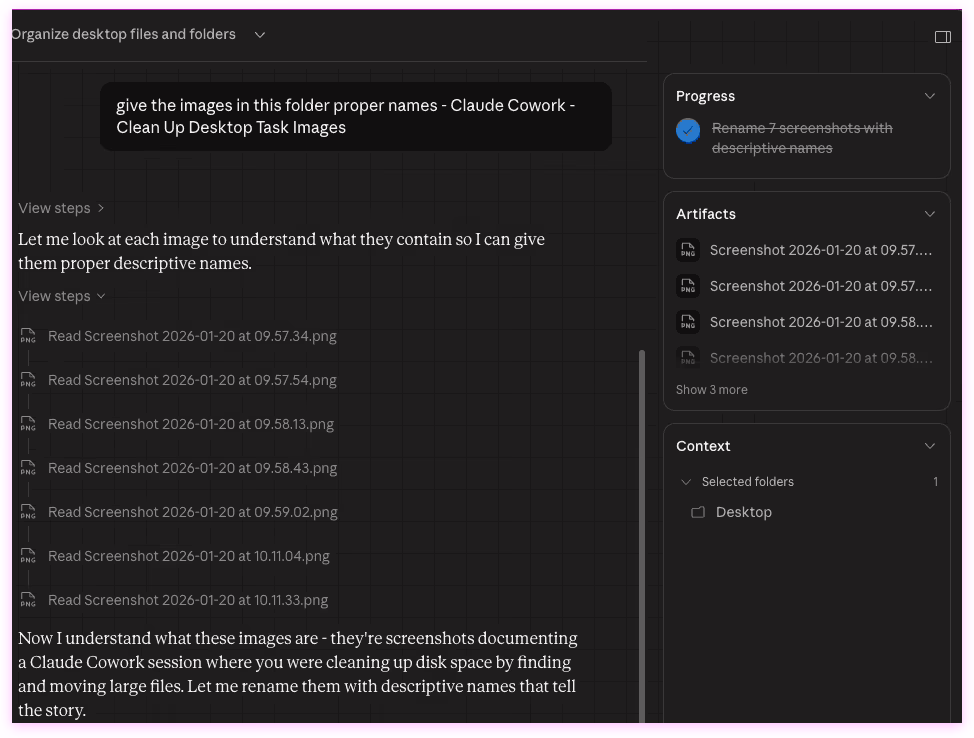
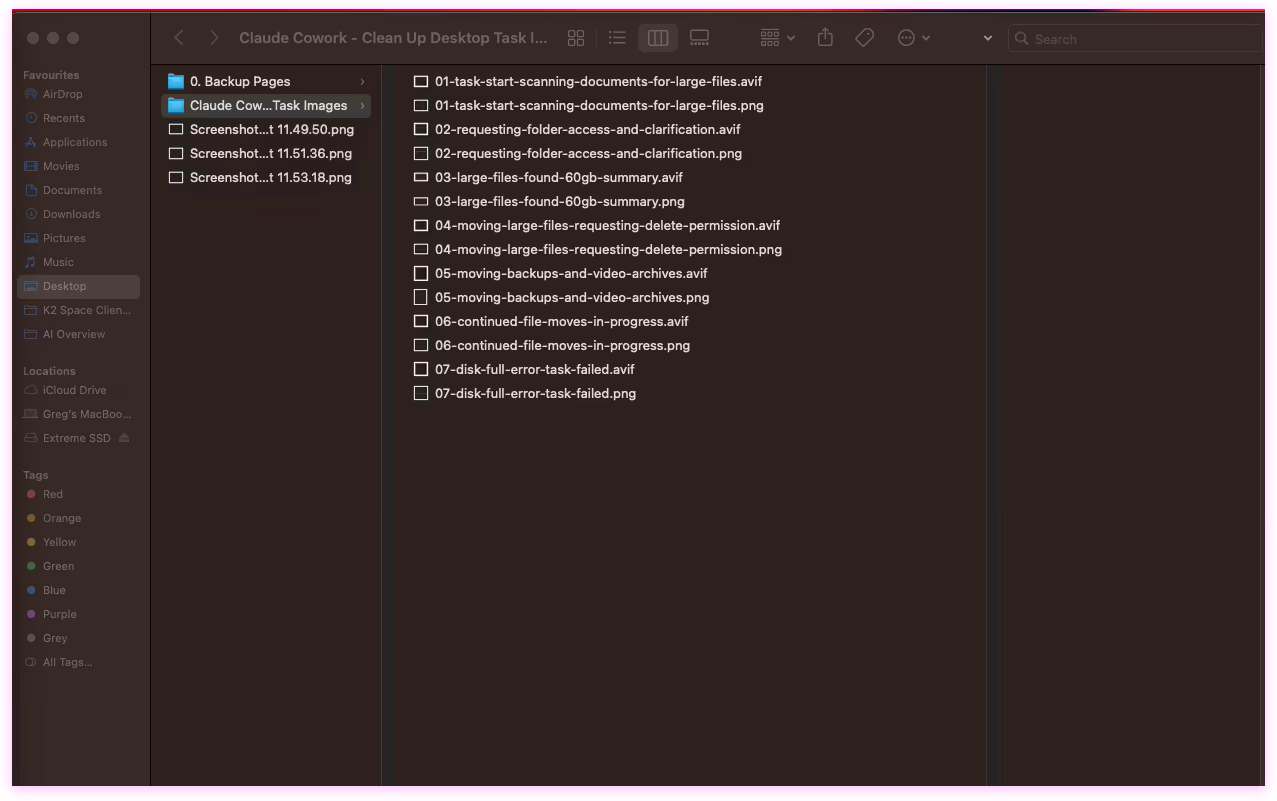
My desktop was a mess. Among the clutter was a folder called "Claude Cowork - Clean Up Desktop Task Images" with seven screenshots documenting a previous session where I'd tried to use Claude Cowork to free up disk space. That session had failed spectacularly-ran out of disk space mid-operation-and I wanted to at least salvage something useful from the chaos by properly naming and organising the screenshots.
Simple enough request. Claude asked for access to my desktop folder, scanned it, and moved five loose screenshots into a new "Images" folder. Quick, clean, efficient. So far so good.
Then I decided to tackle the screenshots documenting that failed disk cleanup session.
File Naming: This Actually Works
The seven screenshots had typical macOS timestamp names-Screenshot 2026-01-20 at 09.57.34.png. Completely useless.
Claude examined each screenshot and created descriptive filenames:
- 01-task-start-scanning-documents-for-large-files.png
- 02-requesting-folder-access-and-clarification.png
- 03-large-files-found-60gb-summary.png
- 04-moving-large-files-requesting-delete-permission.png
- 05-moving-backups-and-video-archives.png
- 06-continued-file-moves-in-progress.png
- 07-disk-full-error-task-failed.png
The numbered prefixes kept everything in sequence, and the descriptions were accurate. This is the kind of tedious work I'd normally put off indefinitely. Having it done automatically in seconds? Genuinely useful.
Adding Visual Effects: Where ImageMagick Hit Its Limits
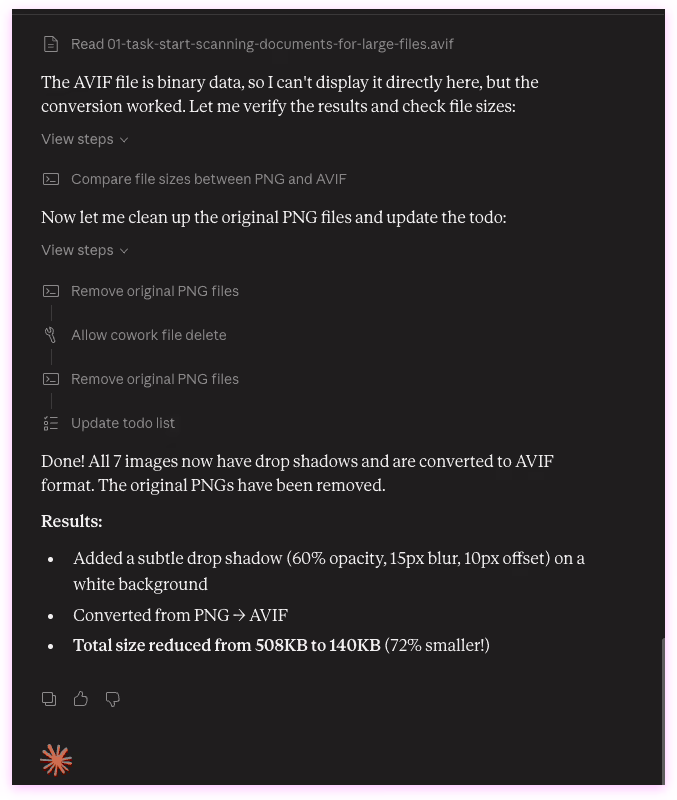
I wanted to add some visual polish-drop shadows around the screenshots to make them look more professional. Claude used ImageMagick to apply consistent shadows and convert everything to AVIF format for better compression.
Then I wanted to refine it-transparent backgrounds with white drop shadows instead of the black shadows on white backgrounds.
This is where we hit a technical limitation. ImageMagick could create the white glow effect on transparent backgrounds perfectly when outputting PNGs. But when converting those PNGs to AVIF format, the transparency got lost-everything rendered with pink/magenta backgrounds instead of true transparency.
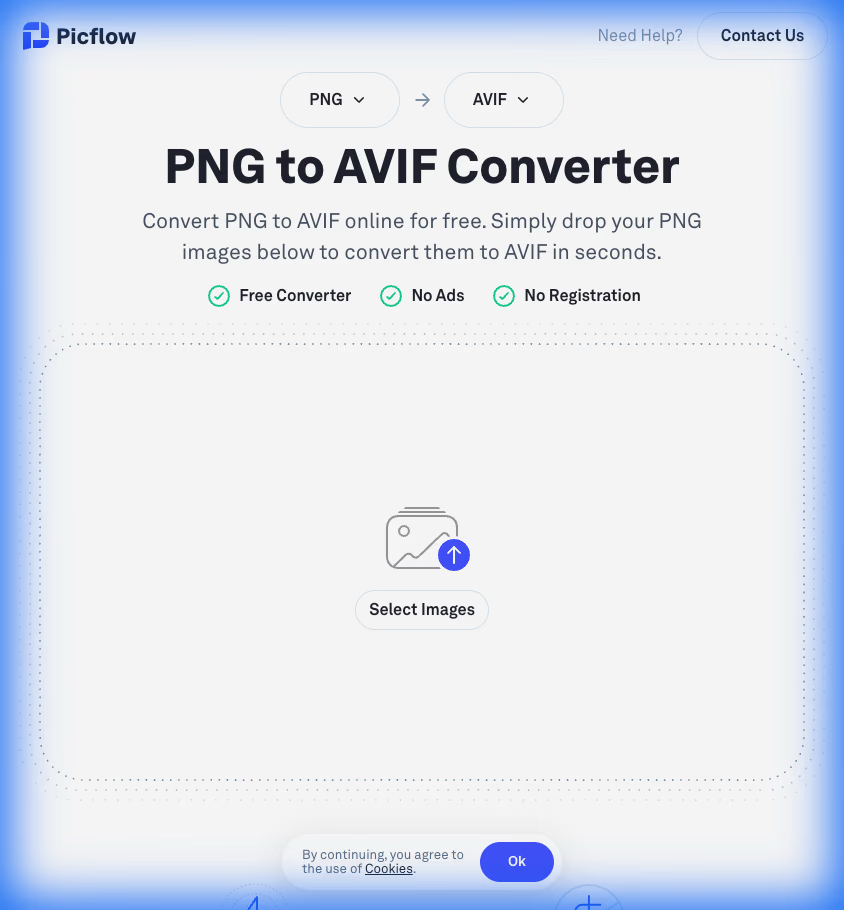
We tried various ImageMagick parameter adjustments, but nothing worked. The solution? I uploaded the perfect transparent PNGs to Picflow.com, did a bulk conversion to AVIF, and got perfect results in about 30 seconds. Manual, but free and simple.
💡 When to Step Outside the Tool
Sometimes the answer isn't more clever prompting or technical troubleshooting. Picflow.com does one thing-bulk image conversion-and does it well. Free, fast, and it actually preserved transparency. Don't be afraid to use the right tool for the job even if it means going manual for a step.
File Management: It Prompts You, But Read Carefully
Claude Cowork does ask for permission before deleting or moving files. When I requested changes that required working with the original PNGs after they'd been converted to AVIF, Claude had already deleted them-because I'd confirmed that deletion earlier.
This isn't a fault of the tool-it prompted me, I said yes. But it's worth knowing: there's no undo for file deletions, and binary formats like AVIF can't be read back by Claude to reverse the process.
The Backstory: Why File Management with Claude Can Go Wrong
Remember I mentioned these screenshots documented a previous failed Claude Cowork session? That's worth explaining, because it's the most important cautionary tale about using Claude for file management.
I'd asked Claude to help me free up disk space by finding large files and moving them. It found about 60GB of old backups and video archives. Great. Then it started moving them.
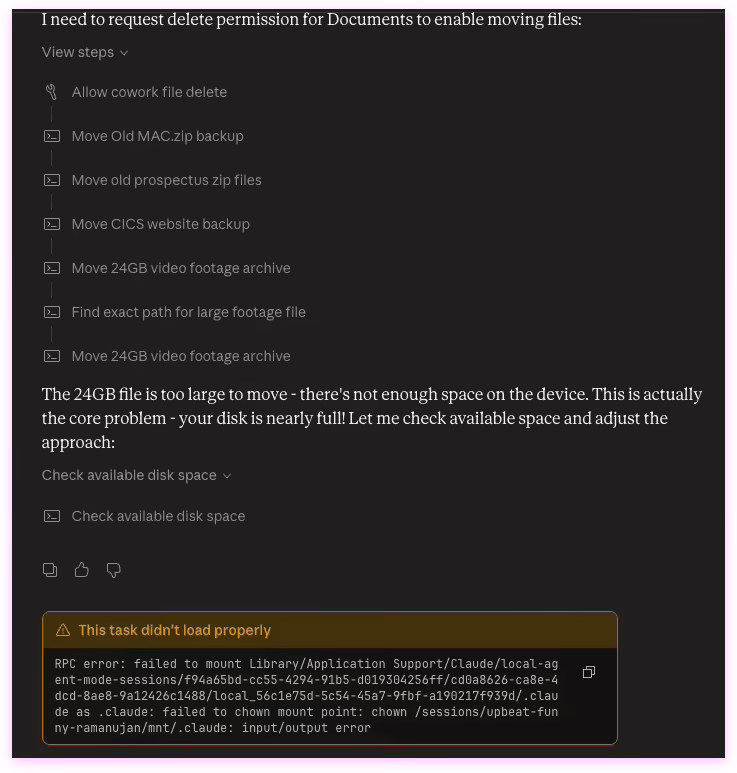
Yes, Claude prompts you before deleting or moving files. Yes, it asks for permissions. But it doesn't check your available disk space before starting operations, and if you're moving 60GB of files on a nearly-full drive, you're going to have problems.
That failed session is what generated the seven screenshots I was trying to organise in this session. Ironic, really-using Claude Cowork to document the failure of using Claude Cowork.
The folder grew from 7 images to 16. Each new screenshot captured another moment in the workflow: renaming files, applying shadows, troubleshooting AVIF transparency, viewing results in Finder.
Claude handled the evolving scope gracefully, processing each batch of new screenshots with the same intelligent naming and consistent visual treatment. The final collection tells a complete story:
- 08-reading-screenshots-for-renaming.avif
- 09-renamed-files-with-dropshadow-task.avif
- 10-adding-dropshadow-and-converting-to-avif.avif
- 11-finder-showing-renamed-avif-files.avif
- 12-conversion-complete-72-percent-smaller.avif
- 13-avif-preview-with-white-glow-effect.avif
- 14-user-requests-revert-to-original-pngs.avif
- 15-api-error-during-avif-reading.avif
- 16-reading-multiple-avif-screenshots.avif
This created a fascinating recursive documentation loop-using Claude Cowork to process screenshots of using Claude Cowork to process screenshots. The AI maintained context throughout, understanding that screenshots 08-16 documented the current session while 01-07 documented a previous one.
The Pink Shadow Problem (and Why I Gave Up on ImageMagick)
After getting the files renamed, I wanted to add visual polish-a subtle white glow around each screenshot so they'd look professional on any background.
This worked perfectly in PNG format. Claude used ImageMagick to create transparent backgrounds with white drop shadows. The files looked exactly right.
Then we converted to AVIF format for better compression, and everything turned pink.
We tried multiple technical fixes-adjusting colour depth, forcing RGBA output, different ImageMagick parameters. Nothing worked. The PNGs were perfect, but the moment they converted to AVIF, the transparency data got corrupted and turned pink.
After about 30 minutes of this, I just uploaded the perfect PNGs to Picflow.com and got flawless AVIF files with proper transparency in about 30 seconds.
💡 Practical Lesson
Don't spend hours troubleshooting command-line tools when specialised web services exist. Picflow.com does one thing (bulk image conversion) and does it perfectly. Sometimes the AI solution isn't the best solution.
What Actually Works vs. What Doesn't
After this experience, here's my honest assessment of what Claude Cowork is actually good for and where it falls short:
✅ What Works Well
❌ What Doesn't Work (or Requires Caution)
Irreversible Operations: When Claude deletes files (after prompting you), they're gone forever. There's no undo. Make backups before confirming any deletion.
Rate Limits: Iterative work burns through your quota fast. I upgraded from Pro to Max mid-session because I didn't want to wait 3 hours for a reset. Budget accordingly.
Practical Advice If You're Going to Try This
1. Keep Backups for Iterative Work
If you're experimenting with image effects or format conversions, keep copies of your source files. Claude prompts before deleting, but once you confirm, the files are gone. Binary formats like AVIF can't be read back to recreate the originals.
2. Check Disk Space for Large File Operations
The original task these screenshots documented-moving 60GB of large files-failed because there wasn't enough disk space. Claude executes operations efficiently but doesn't check available space beforehand. For large file operations, verify you have enough space yourself.
3. Budget for Rate Limits
The speed is impressive, but iterative work burns through rate limits quickly. I hit Pro limits in about an hour and upgraded to Max. If you're planning extended sessions with lots of adjustments, the Max plan makes more sense.
4. Don't Be Afraid to Use External Tools
When ImageMagick couldn't handle AVIF transparency properly, Picflow.com solved it in 30 seconds. Sometimes stepping outside the tool for one specific step is the pragmatic solution. That's fine.
Overall: More Intuitive Than Expected
I came into this skeptical. I expected Claude Cowork to be a paired-down version of Claude Code-maybe useful for simple tasks but nothing special. What I found was surprisingly different: it's more interactive, more intuitive, and honestly more useful for the kind of messy file management work I normally avoid.
The file naming alone justifies using it. Turning a folder of meaningless timestamp screenshots into properly organised, searchable files in seconds? That's genuinely valuable.
The image processing worked well within the limits of the tools available. Drop shadows and AVIF conversion happened fast and efficiently. When ImageMagick couldn't handle transparency properly, stepping outside to Picflow.com for that one step was simple enough-not a deal-breaker.
💡 Final Assessment
Claude Cowork exceeded my expectations. It's not perfect-you'll hit technical limitations with certain file formats, rate limits come faster than you'd expect, and you need to read the prompts before confirming file deletions-but it's significantly more capable and user-friendly than I anticipated. For file organisation, batch renaming, and image processing, it's genuinely useful. Would recommend, especially if you're on the Max plan for iterative work.
The Bottom Line
Started with seven badly-named screenshots. Ended with 16 properly organised, descriptively named, professionally formatted images. The process was fast, the interface was intuitive, and despite a few technical hiccups (AVIF transparency, rate limits), the overall experience was positive.
This isn't a watered-down version of anything-it's a legitimately useful tool for the kind of file management tasks that are tedious to do manually. The file naming is excellent, the batch processing is fast, and while you'll occasionally need to step outside the tool for specific technical requirements (like AVIF transparency), that's not a major issue.
If you've been putting off organising folders of screenshots or documents because it's too tedious to do manually, this is worth trying. Just read the prompts before confirming file deletions, keep backups if you're doing iterative work, and budget for rate limits if you're on Pro.
Genuinely impressed. Would use again.