Setting Up Clawdbot with iMessage: A Complete Guide for Mac Users
Note: Clawdbot has been rebranded to Moltbot (January 2026).
The old @clawdbot handles are now controlled by scammers. Learn more
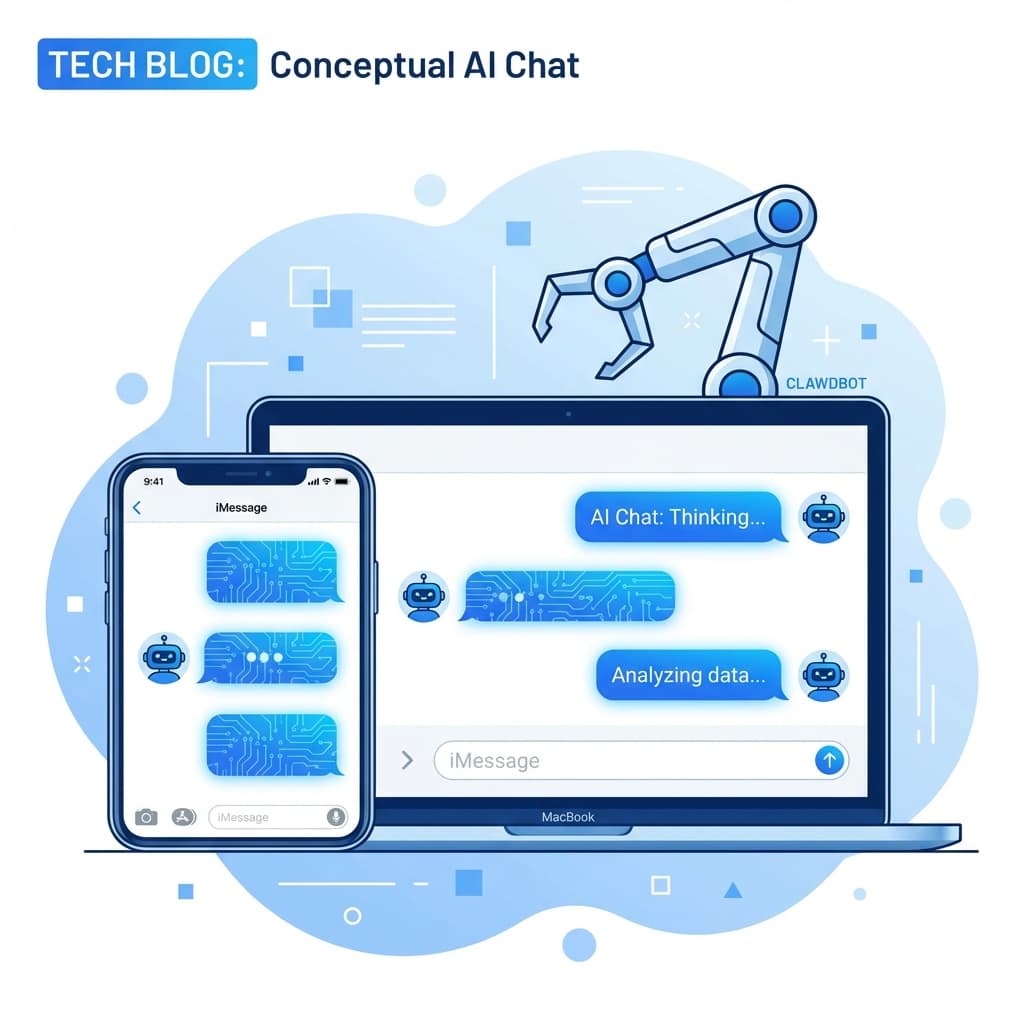
One of the most appealing features of Clawdbot is its ability to connect to the messaging apps you already use. For Mac users in the UK, integrating the assistant with iMessage means you can talk to your personal AI through the familiar blue chat bubbles on your iPhone, iPad or Mac. Clawdbot’s iMessage channel is built on a lightweight command-line tool called imsg. It gives the gateway access to the Messages database and allows the assistant to send and receive iMessages, SMS and group texts. This article walks through the setup process, explains how the integration works under the hood and offers security tips and best practices.
How the iMessage channel works
The iMessage channel is an external CLI integration. When you enable it, the Clawdbot gateway spawns an instance of imsg and communicates with it via JSON-RPC over standard input and output. The tool reads your Messages database (chat.db) and delivers events back to the gateway. Replies always route back to the same chat or handle, so conversations feel natural. Direct messages share the agent’s main session, while groups are isolated using a session key pattern like agent:<agentId>:imessage:group:<chat_id>. This separation allows you to run different personalities or policies per group.
By default, iMessage can write configuration updates when you use /config set|unset commands. If you would rather treat iMessage as a read-only channel, set channels.imessage.cfgWrites: false to disable config writes.
Quick setup for Mac users
If you just want to get started quickly on your own Mac, follow these steps:
- Sign in to Messages. Open the Messages app on your Mac and ensure you are signed in with the Apple ID you wish to use.
- Install the imsg CLI via Homebrew. Run
brew install steipete/tap/imsgfrom Terminal. Homebrew will place the binary at/usr/local/bin/imsg(or/opt/homebrew/bin/imsgon Apple Silicon). - Configure Clawdbot. Add the following to your
clawdbot.jsonconfiguration:{ "channels": { "imessage": { "enabled": true, "cliPath": "/usr/local/bin/imsg", "dbPath": "/Users/<you>/Library/Messages/chat.db" } } }Replace<you>with your macOS username. ThecliPathmust point to theimsgbinary anddbPathto your Messages database. - Start the gateway. Run
clawdbot gatewayin your terminal. On first run, macOS will prompt you to grant Full Disk Access (to read the Messages database) and Automation permission (to send messages). Approve these prompts.
That’s it. When you open iMessage on your phone or Mac, you can now send a direct message to your own handle (the one associated with your Apple ID) and Clawdbot will respond. The assistant will also join group chats when invited, subject to your group policy (see below).
Understanding sessions and deterministic routing
Every messaging platform has quirks, and iMessage is no exception. Clawdbot ensures that replies always go back to the correct place by using deterministic routing. Direct messages share a single agent session: if you send multiple DMs to the bot, it will remember previous context. Group chats are isolated using a different session key so that conversations in one group don’t leak into another. The gateway normalises events from imsg into a channel envelope and uses chat_id or handle to route responses. For group-like threads that arrive with is_group=false (a quirk of Messages), you can explicitly list the chat_id under channels.imessage.groups to force isolation.
Requirements and permissions
iMessage integration has a few prerequisites:
- macOS with Messages signed in. Clawdbot cannot access your iCloud conversations if you are not logged in.
- Full Disk Access. Both Clawdbot and
imsgmust be granted Full Disk Access so they can read the Messages database. Without this, the assistant cannot see incoming messages. - Automation permission. macOS will ask you to allow the assistant to automate Messages the first time it sends a message. This permission must be granted in System Settings.
- Correct cliPath and dbPath. You can point
cliPathat any command that proxies stdin/stdout, including an SSH wrapper.dbPathmust point to yourchat.db. If the database is located in a non-default directory, update the path accordingly.
Using a dedicated bot user
If you want your assistant to have its own identity (for example, a separate phone number or Apple ID), you can run iMessage in a dedicated macOS user. This keeps your personal messages separate and allows you to share the bot’s contact details without exposing your own. The process looks like this:
- Create a new Apple ID (e.g.
[email protected]). Apple may require a phone number for verification. - Create a new macOS user, for example
clawdbot, and sign into it. - Open Messages in that user and sign in using the bot’s Apple ID.
- Enable Remote Login (System Settings → General → Sharing → Remote Login) so you can run
imsgvia SSH. - Install
imsgin the bot user (brew install steipete/tap/imsg). - Set up passwordless SSH from your main user to the bot user: run
ssh <bot-user>@localhost trueonce to accept host keys and configure key-based authentication. - Create a wrapper script (for example
/usr/local/bin/imsg-bot) that runsimsgvia SSH:#!/usr/bin/env bash set -euo pipefail exec /usr/bin/ssh -o BatchMode=yes -o ConnectTimeout=5 -T <bot-user>@localhost "/usr/local/bin/imsg" "$@"
- Update your Clawdbot configuration to use the wrapper script and the bot user’s Messages database:
{
  "channels": {
    "imessage": {
      "enabled": true,
      "accounts": {
        "bot": {
          "name": "Bot",
          "enabled": true,
          "cliPath": "/usr/local/bin/imsg-bot",
          "dbPath": "/Users/<bot-user>/Library/Messages/chat.db"
        }
      }
    }
  }
}
On first run you may need to log into the bot user’s desktop (using Screen Sharing) and manually approve the Full Disk Access and Automation prompts by running imsg chats --limit 1 and sending a test message. Once approved, the headless integration works reliably. The accounts map allows you to configure multiple identities if, for example, you want both a personal and a bot identity running at the same time.
Remote/SSH variant and Tailscale bridging
You do not need to run the gateway and iMessage on the same machine. Clawdbot supports running imsg via SSH on a remote Mac. In this case cliPath can point to a wrapper that SSHes to another host and runs imsg.
Example:
#!/usr/bin/env bash
exec ssh -T bot@mac-mini "imsg" "$@"
When using remote iMessage, attachments live on the remote machine. To transfer them back to the gateway for ingestion, set channels.imessage.remoteHost to the SSH host. The gateway will fetch attachments via SCP when needed. A typical configuration might look like this:
{
  "channels": {
    "imessage": {
      "enabled": true,
      "cliPath": "/usr/local/bin/imsg-remote",
      "dbPath": "/Users/bot/Library/Messages/chat.db",
      "remoteHost": "[email protected]",
      "includeAttachments": true
    }
  }
}
For users hosting Clawdbot on a Linux server but still wanting iMessage, Tailscale offers a convenient bridge. Install Tailscale on both your server and your Mac; the gateway can then SSH into the Mac over the tailnet and fetch attachments. This method keeps the gateway on a secure private network while still leveraging Apple hardware.
Access control: pairing and group policies
Clawdbot includes flexible policies to control who can message your assistant:
- Direct messages (DMs): The default
dmPolicyispairing. Unknown senders receive a pairing code and the bot ignores their messages until you approve the code usingclawdbot pairing approve imessage <code>. You can changedmPolicytoallowList(only allow specified contacts),open(everyone) ordisabled(no DMs). UseallowFromto specify phone numbers, emails or wildcard patterns. - Group chats: The
groupPolicycan beopen,allowListordisabled(default isallowList). Combine it withgroupAllowFromto restrict which participants may trigger the bot in a group. Because iMessage lacks built-in mentions metadata, mention gating relies on configurable regex patterns ingroupChat.mentionPatterns. SetrequireMention: trueto make the agent respond only when mentioned. - Group-ish threads: Some messages with multiple participants appear as DMs with
is_group=false. To treat these as groups (and therefore isolate their session), list thechat_idunderchannels.imessage.groups.
Properly configuring pairing and group policies is essential for security. It prevents unknown contacts from sending malicious prompts and stops the bot from listening to every group conversation.
Media, limits and addressing
The iMessage integration supports optional ingestion of attachments. Set includeAttachments: true to allow the gateway to fetch media; control size with mediaMaxMb (default 16 MB). Outbound text messages are chunked according to textChunkLimit (default 4000 characters). You can split on blank lines by setting chunkMode: "newline". For addressing, prefer using chat_id:<id> because it uniquely identifies the conversation. You can also use chat_guid:<guid> or direct handles like imessage:+447700900000 or sms:+447700900000.
Security best practices
While iMessage integration is powerful, it also introduces risks. Follow these guidelines to stay safe:
- Use a separate Apple ID or user for your bot if you plan to share it with others. This avoids exposing your personal messages and contacts.
- Lock down unknown senders with the default pairing policy. Do not set
openunless you want anyone to talk to your bot. - Disable config writes unless you trust everyone who can message the bot. Setting
cfgWrites: falseprevents malicious users from changing your configuration. - Restrict group participation using
groupAllowFromand mention gating. This reduces the attack surface for prompt injection. - Enable sandboxing for agents that run commands or access files. The sandbox isolates tool execution and prevents the model from reading your entire filesystem.
- Monitor attachments and set size limits. Large attachments could be used to exfiltrate data.
- Respect Apple’s terms of service. Running automated scripts that send messages may violate the iMessage terms, so use this integration responsibly. Do not spam or automate messaging without consent.
- Comply with data protection laws. If you process other people’s data (for example, reading group chat history), ensure you have a lawful basis under the UK GDPR. Consider a Data Protection Impact Assessment for commercial use.
Supported iMessage Commands
While you can talk to Moltbot naturally, there are specific slash commands available within iMessage to control the bot directly.
| Command | Description | Example |
|---|---|---|
| /reset | Clears current conversation context. | /reset |
| /pause | Pauses the bot for X minutes. | /pause 120 (stops replies for 2 hours) |
| /config | Read or write config variables. | /config set agent.model gpt-4 |
| /help | Shows available commands. | /help |
Frequently Asked Questions
Conclusion
Integrating Clawdbot with iMessage turns your Mac into a powerful AI communications hub. Whether you simply want to chat with your assistant via blue bubbles or you plan to build sophisticated workflows, understanding how the channel works and configuring it securely are critical. Start with the quick setup to get your bot running, then consider dedicating a separate user or remote Mac for a cleaner identity. Use pairing and group policies to control who can interact, set limits on attachments and messages, and always be mindful of privacy. With these steps in place, you can enjoy a seamless AI experience across your Apple devices while keeping your data – and your contacts’ data – safe.