 AI Tools Review Editorial Team
Quick Answer:
The Figma MCP connector gives Claude Code structured access to Figma files - reading components, variables, layout data, FigJam content and Make resources, and generating code from selected frames using Code Connect. The MCP server runs locally on your device, so designs stay on-device. Find it in the Claude Connectors Directory.
Designers hand off Figma. Developers translate. The connector compresses that whole loop.
Claude can read the real design - not a screenshot of it - and generate code that reflects the components, variables and structure already in your design system.
Overview
The Figma MCP server gives Claude Code structured access to Figma files and tools. Beyond static layouts, it reads components, variables, layout data, FigJam content and Make resources, generates code from selected frames, and uses Code Connect to keep generated code aligned with the real components your design system uses.
Under the hood, the server exposes a defined set of MCP tools rather than a single black box. get_design_context generates code from your selection (React with Tailwind by default, customisable per framework); get_screenshot captures the selection visually; get_variable_defs returns the variables and styles used in the selection; get_metadata returns a sparse XML representation containing just basic properties; and get_figjam returns FigJam diagram metadata in XML. A further family - get_code_connect_map, get_code_connect_suggestions and add_code_connect_map - manages the mapping between Figma node IDs and the corresponding components in your codebase, which is what keeps generated output anchored to your real design system.
What the Claude Connector Does
- Generate code from selected Figma nodes - a frame, a component, a flow.
- Extract design context from layers - spacing, hierarchy, props.
- Pull in variables and components directly into your IDE - especially useful for design systems.
- Work with Code Connect so outputs reference your real components, not invented ones.
Two Working Modes
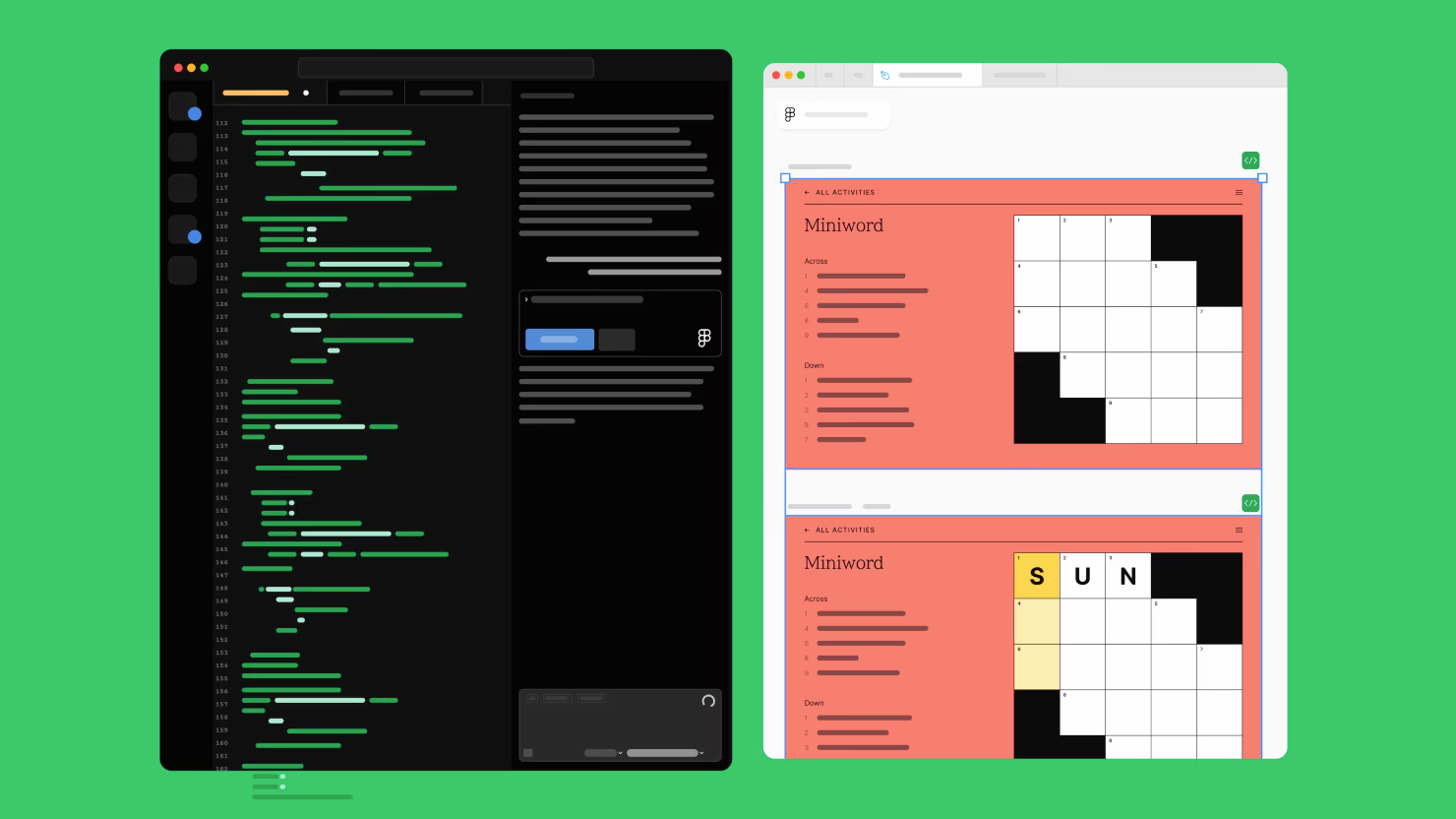
You can work two ways. Selection-based: select any frame or component in Figma, then ask Claude - "Add a button to this card", "Build this hero". Or link-based: copy a Figma link and paste it in your prompt - "Convert this sign-up card design to code: [figma-link]". Either way, Claude is reading the real file, not a description of it.
Real Use Cases
- Frame to code: select a Figma frame and turn it into working code - great for product teams building new flows or iterating on app features.
- Design-system work: pull variables, components and layout data into your IDE so generated code stays aligned with system tokens.
- Flow capture: capture an entire flow (onboarding, checkout, settings) and lay it out on the canvas in a single session, preserving sequence and context.
- Designer-developer collaboration: reduce the "is this exactly the spacing?" cycle by having Claude read the spec directly from the design.
Code to Canvas
Figma has shown the reverse direction as well: a Claude Code to Figma flow that turns production code into editable Figma designs. That extends the connector beyond design-to-code into a fuller round-trip loop - useful for catching designs back up to code that has drifted ahead, and for prototyping at higher fidelity inside Figma based on what already exists in the codebase.
Figma's help documentation now folds this into the server proper. Code-to-canvas is "currently available using the remote Figma MCP server with certain clients", and the broader write-to-canvas capability lets an agent "create and modify native Figma content directly from your MCP client" - covering frames, components, variables and auto layout, not just flat shapes. In other words, the round trip is no longer a demo: it is a documented feature of the remote server, albeit one Figma flags as free only "during the beta period" before it eventually becomes usage-based.
Real-World Experience
The reception has been notably strong from designers and developers alike, with hands-on write-ups from Builder.io, Muz.li, the Figma blog and a stack of designer-developer collaboration pieces on Medium. The recurring praise: code outputs are far more faithful to the design than screenshot-based approaches, because Claude is reading the real structure.
Honest caveats: outputs still benefit from a human pass for accessibility, semantic HTML and complex interactions. The connector compresses a lot of the boilerplate, not the judgement.
One practical detail worth knowing before you commit to a client: Figma gates which tools can connect at all. Its developer documentation states that "only clients listed in the Figma MCP Catalog can connect to the Figma MCP Server", with a waitlist for developers of new clients - so an obscure MCP client may simply be refused. The help-centre guide documents setup for VS Code, Cursor, Windsurf, Claude Code and Codex, and its headline best-practice recommendation matches what users report works best: copy a selection link from Figma and use link-based prompts, rather than relying on whatever happens to be selected on the canvas.
How to Set It Up
There are two servers, and for most people the remote one is the right starting point - it needs no local install and works without the Figma desktop app. The cleanest route in Claude Code is the official plugin, which bundles the MCP server settings plus Agent Skills for common workflows:
claude plugin install figma@claude-plugins-officialThen run /mcp inside Claude Code, choose figma, select Authenticate and click Allow access. The remote server is available on every seat and plan.
The desktop (local) server
If you want the fully on-device path - design files never leave your machine - use the desktop server instead. It requires a Dev or Full seat on a paid plan:
- Open a Figma Design file in the desktop app and switch to Dev Mode.
- Enable the MCP server from the Dev Mode panel in the right sidebar.
- Point your IDE (Claude Code, Cursor, VS Code) at the local server URL per Figma's docs.
- Select a frame, or paste a Figma link in your prompt, and ask Claude to generate or modify code.
Privacy and Security
The MCP server runs locally on your device, which means your design files aren't being shipped off to a remote service. The server only operates when Dev Mode is activated within a Figma file. For organisations sensitive about design-IP, that on-device model is a meaningful design choice.
Strictly, there are two trust models to choose between. The remote server connects to Figma's hosted endpoint at https://mcp.figma.com/mcp, which is where the broadest feature set (including write-to-canvas and code-to-canvas) lives. The desktop server is the on-device alternative described above, which Figma positions as "primarily for specific use cases for organisations and enterprises" - typically those whose security posture requires design data to stay local. Pick based on which constraint matters more: feature breadth or data locality.
Common Problems and Fixes
- Desktop server won't connect: the local server only runs while a Figma Design file is open in the desktop app with Dev Mode on. If your IDE can't reach it, confirm the desktop app is running and the toggle is enabled - the browser app doesn't host the local server.
- "No design context" on a selection: Claude reads the currently selected node. If nothing is selected, or you selected a page rather than a frame, the response is thin. Select the specific frame or component, or paste an exact node link.
- Generated code invents components: without Code Connect, Claude guesses component names. Set up Code Connect so outputs reference your real design-system components instead of fabricated ones.
- Desktop server unavailable on your seat: the local server needs a Dev or Full seat on a paid plan. On a Viewer or free seat, use the remote server, which works on every plan.
- Huge frames blow the context window: asking Claude to convert an entire multi-screen flow at once pulls enormous node data. Work frame by frame for cleaner, more faithful output.
- Auth loop in Claude Code: if
/mcpkeeps asking you to authenticate, the OAuth callback didn't complete - finish the "Allow access" step in the browser before returning to the terminal.
Pricing and Availability
The MCP server is included with Figma - there is no separate charge for the connector today, though Figma's developer documentation notes it "will eventually be a usage-based paid feature, but is currently available for free during the beta period". Access splits by server: the remote server is available on every seat and plan, including free, while the desktop (local) server requires a Dev or Full seat on a paid plan. That makes the remote server the practical default for most people, with the desktop server reserved for teams that need design files to stay fully on-device.
On the Claude side, the official Figma plugin works with your normal Claude Code access. Code generation quality scales with the underlying model, so pairing the connector with a strong coding model gives the most faithful output.
Limitations
- Dev Mode required: the MCP server is gated by Dev Mode in a Figma file.
- Local server: great for privacy, but you need a local set-up; not a zero-config cloud connector.
- Remote-only tools: a meaningful slice of the toolset only exists on the remote server -
create_new_file,generate_diagram(FigJam diagrams from Mermaid or natural language),search_design_system,get_libraries,upload_assetsand the general-purposeuse_figmaediting tool. Choosing the desktop server for privacy means giving those up. - Asset size cap:
upload_assetsaccepts PNG, JPG, GIF and WebP files at a maximum of 10MB each. - Outputs still need review: accessibility, semantic structure and complex interactions benefit from human polish.
Who It Is For
Product teams, design-systems engineers and designer-developer pairs. If your work crosses the Figma-to-code boundary regularly, this is one of the highest-leverage connectors in the directory.
The Bottom Line
The Figma connector finally treats designs as structured data Claude can read - components, variables, layouts - instead of screenshots to guess from. The result is code that reflects your real design system, plus a growing two-way loop with Code to Canvas. For teams that live across the Figma-to-code boundary, it is one of the most consequential connectors in the catalogue.
Enable Dev Mode, point your IDE at the local MCP server, and let Claude read your designs the way they were built. Browse more in the complete Claude Connectors Directory.
Sources: Figma (help.figma.com, figma.com/blog, developers.figma.com), Builder.io, Muz.li. Image: Figma. Last updated: June 2026.