 AI Tools Review Editorial Team
Quick Answer:
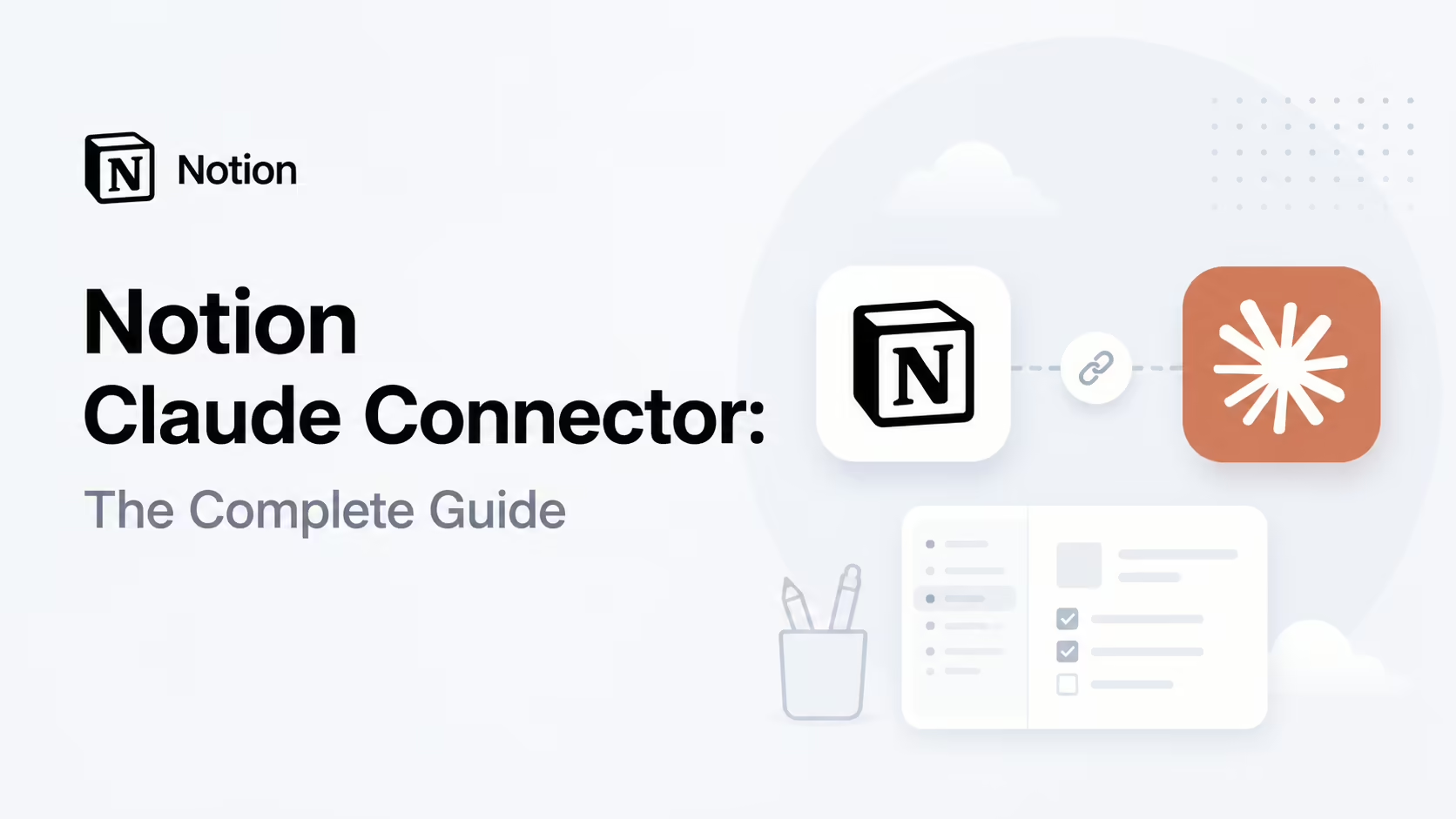
The Notion connector wires Claude directly into your Notion workspace. It can read and write pages, databases, wikis and tasks in real time - creating pages, adding database entries, commenting and keeping your source of truth in sync with the work Claude is helping you do. Find it in the Claude Connectors Directory.
Notion is where many teams keep everything - notes, specs, roadmaps, knowledge bases. The connector lets Claude work inside it rather than next to it.
Done well, that turns a chat with Claude into a workspace update, not a copy-paste exercise.
Overview
The Notion MCP server gives AI assistants like Claude structured access to your workspace. Once connected, Claude can read your notes, docs, wikis and tasks - and write back to them. It is one of the most-used connectors in the directory because Notion is, for so many teams, the place where work is recorded.
Notion publishes official MCP documentation and a Help Centre guide, and there is an active ecosystem of tutorials covering Claude.ai, Claude Desktop and Claude Code.
The documented tool surface is genuinely broad. Beyond notion-search - which can search not only your workspace but connected tools such as Slack, Google Drive and Jira - and notion-fetch for pulling a page, database or data source by URL or ID, the supported-tools list covers notion-create-pages, notion-update-page, notion-move-pages, notion-duplicate-page, notion-create-database, notion-create-view, notion-create-comment and notion-get-comments, plus user and teamspace lookups (notion-get-users, notion-get-teams). Usage is rate-limited at 180 requests per minute overall, with a tighter tool-specific cap of 30 requests per minute on search - ample for conversation, but a real ceiling for bulk automated runs.
What Is Notion?
Notion is a connected workspace that combines documents, databases, wikis and project tracking in one tool. Teams use it for everything from meeting notes and product specs to roadmaps, OKRs and customer knowledge bases. Its database model - where any list can be a structured database with custom properties - makes it a natural fit for AI workflows that need to read and write structured data.
That structure is the key to why the connector works so well. A Notion database is not just free text: each row has typed properties - status, owner, date, select fields - so when Claude writes a bug ticket or a roadmap item, it can populate those fields correctly rather than dumping a paragraph. For many teams Notion is the single place where decisions, specs and tasks are recorded, which makes it the highest-leverage surface to give an assistant access to.
What the Claude Connector Does
Through the connector, Claude can:
- Read and write pages - pull a meeting note, brief or wiki page; draft, edit or append content.
- Manage databases - create entries with structured properties (title, status, owner, severity, etc.).
- Comment and discuss - leave inline comments on pages.
- Organise - move pages, structure hierarchies and keep your workspace tidy.
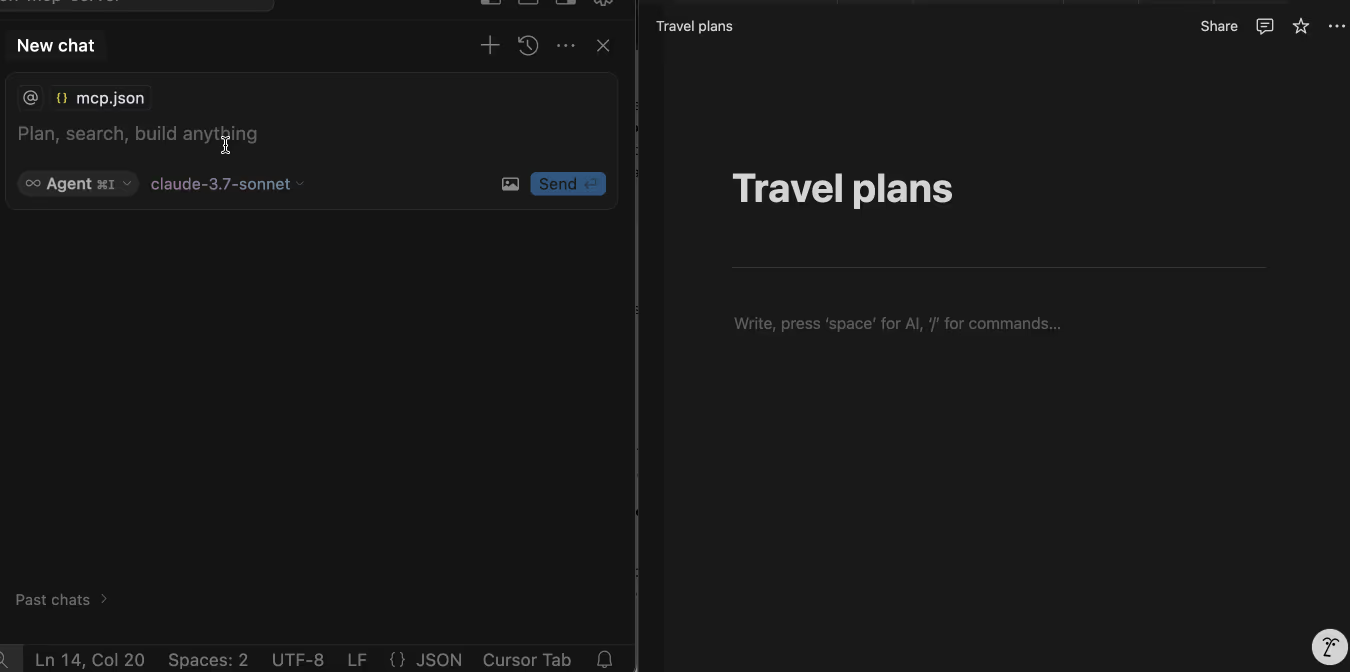
Concretely, the hosted server exposes tools such as search, fetch a page, create and update pages, query a database and post comments - all acting on the authenticated user's behalf. Because Notion is so flexible, the same connector serves wildly different use cases, which is exactly why it is so widely adopted.
MCP vs the Notion API
There are two ways to give an AI access to Notion, and they suit different jobs:
- The hosted MCP server (
mcp.notion.com) is the path for Claude. It uses one-click OAuth, inherits your permissions, and needs no infrastructure. This is what almost everyone should use with Claude Desktop, Claude.ai and Claude Code. - The Notion REST API with an internal integration token is the path for custom code - your own scripts, automations or a bespoke agent. You create an integration, grant it specific pages, and call the API directly.
Notion also publishes an open-source local server (makenotion/notion-mcp-server) for people who want to self-host and authenticate with their own integration token rather than OAuth. For a standard Claude setup, prefer the hosted server; reach for the API or local server when you need full programmatic control.
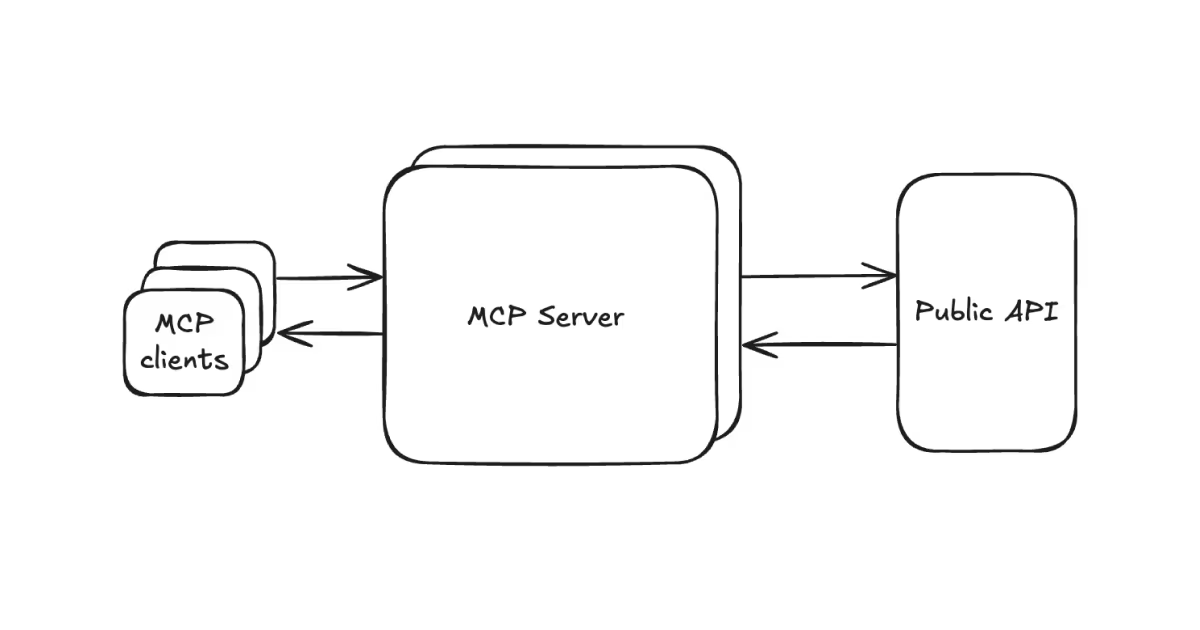
In its engineering write-up, Notion explains why it hosts the server itself: running it on the existing codebase gives the team a rapid development loop, so improvements ship without users downloading updated packages, and everyone connects to the same public integration through a one-click OAuth flow. The server also speaks an enhanced "Notion-flavored" Markdown tailored to Notion's broad set of blocks, which is part of why its tool responses are unusually clean for an AI to work with.
Setup: The Hosted MCP Server
The hosted server at https://mcp.notion.com/mcp is the recommended route. In Claude Desktop, do not edit the config file - add it under Settings → Connectors, click to authorise, and complete the one-click OAuth flow. You grant the integration the same permissions you already have in the workspace, and Notion stores the resulting token server-side to authenticate your tool calls.
In Claude Code, add it from the terminal:
claude mcp add --transport http notion https://mcp.notion.com/mcpFor other MCP clients you can point a server entry at the same URL:
{
  "mcpServers": {
    "notion": {
      "url": "https://mcp.notion.com/mcp"
    }
  }
}
Authorise in the browser when prompted and you are connected - no token to copy, and access is automatically limited to the content your account can see.
Setup: The Notion API (Integrations)
If you are wiring Notion into your own code rather than Claude's chat client, use an internal integration:
- In the sidebar's Build section choose Internal connections → Create a new connection, name it and pick the workspace. (Only workspace owners can do this.)
- Open the Configuration tab to copy the installation access token (often shown via the ••• menu). Keep it secret - use environment variables, never commit it.
- Grant page access explicitly. This is the step people miss: an integration sees nothing until you share pages with it. On each page or database, click ••• → Add connections and select your integration.
- Call the REST API (or pass the token to the local MCP server) to read and write the pages you shared.
The golden rule with the API is least privilege: share only the specific pages the integration needs, and if a token ever leaks, refresh it from the Configuration tab immediately.
Real Use Cases
- Engineering issue tracking: during a code review with Claude Code, the model analyses a module, generates bug tickets, and writes them into a Notion Issues database with title, description, severity and affected file path.
- Product workflows: have Claude analyse user feedback and turn it into feature specifications or launch checklists on your product roadmap.
- Research consolidation: turn scattered notes into a structured database and a comprehensive review document.
- Content pipelines: Claude reads a content brief from Notion, generates a draft, and writes it back - end to end - so the workspace stays the source of truth.
- Context for code: pull meeting notes and project briefs into Claude Code without copy-pasting.
Real-World Experience
The reception has been broadly enthusiastic across writers, product teams, researchers and developers, with practical setup guides from Notion itself, Composio, Vibe Coding Academy and others. The most common refrain in user write-ups: the friction of moving knowledge between Claude and Notion just disappears.
The honest caveat is that write-back to databases rewards a tidy schema - if your Notion is chaotic, the connector won't fix that. Teams that invest in clear database properties and templates get the most leverage. Paired with a capable model like Claude Opus 4.8, the workflows feel close to magic; with a weaker model, less so.
Common Problems and Fixes
- "Claude can't see my page": the most common complaint, and almost always a sharing problem. With the API/integration route, the integration must be explicitly added to each page (••• → Add connections). With the hosted server, the page must be visible to the account you authorised with.
- Editing the config file in Claude Desktop: remote servers like Notion's are added under Settings → Connectors, not in
claude_desktop_config.json. Pasting a remote URL into the JSON config is a frequent dead end. - Messy results from messy databases: write-back rewards a tidy schema. If database properties are inconsistent, Claude's entries will be too - invest in clear property names and templates first.
- Token leaks: with internal integrations, the installation token authenticates every request. Store it in an environment variable, keep it out of version control, and refresh it if exposed.
- Over-broad access: sharing a top-level page shares everything nested under it. Share the narrowest page that still covers the task.
Security and Permissions
The connector operates through your authenticated session - Claude can only see and act on the workspace areas you grant. The standard advice applies doubly to a workspace as data-rich as Notion: scope access tightly, prefer read-only on sensitive areas, and review what the connector can do. Notion's own permissioning - shared vs private workspaces, page-level access - composes with Claude's permissioning.
One often-missed point: with the hosted OAuth server the integration inherits your access, so anything you can open, Claude can open. If your account can reach sensitive HR or finance pages, so can the connector. Teams that take this seriously create a dedicated account or a narrowly shared internal integration for AI use, rather than wiring it to an admin's all-seeing login. And because the agent reads page content, treat untrusted text inside Notion as a potential prompt-injection vector - a pasted email or web clipping could contain instructions you did not write.
Limitations
- Quality follows structure: messy Notion = messy results; tidy databases pay off most.
- Write rights matter: grant carefully on shared or production workspaces.
- Notion-scoped: brilliant inside Notion, not a substitute for connectors to your other tools.
- Plan-gated tools: per Notion's supported-tools docs, search requires Notion AI access (without it, search is limited to your workspace rather than connected tools),
notion-query-database-viewneeds a Business plan or higher with Notion AI, andnotion-query-data-sourcesis Enterprise-with-AI only. - Rate limits: 180 requests per minute overall and 30 per minute on search - fine for chat, restrictive for bulk migrations.
Who It Is For
Anyone whose work lives in Notion - product teams, content teams, researchers, engineering teams, founders running a company in a single workspace. If Notion is your source of truth, this is one of the highest-value connectors in the directory.
The Bottom Line
The Notion connector closes the loop between AI conversations and the workspace where decisions get recorded. Used well, it makes Claude an active participant in your team's source of truth - not a sidebar to it.
Tidy your databases, scope your permissions and let Claude work where the work lives. Explore the rest in the complete Claude Connectors Directory.
Sources: Notion (developers.notion.com/guides/mcp, notion.com/blog/notions-hosted-mcp-server, developers.notion.com/docs/create-a-notion-integration), github.com/makenotion/notion-mcp-server, Composio, Vibe Coding Academy. Image: Notion. Last updated: June 2026.