 AI Tools Review Editorial Team
Quick Answer:
The Slack connector gives Claude secure access to your workspace - reading messages from channels or threads, posting and replying, searching by keyword, sender or timestamp, listing users and channels, and fetching info to personalise responses. Anthropic and Slack also support running Claude Code inside Slack. It's one of the most-installed entries in the Claude Connectors Directory.
Most knowledge work happens in conversations. For most teams, those conversations happen in Slack.
The Slack connector lets Claude join them - reading what's been said, summarising what you missed, and posting the response.
Overview
Slack MCP is a secure integration that connects your Slack workspace to AI clients including Claude and Cursor, giving language models direct access to your real Slack data through a defined set of supported actions. The connector is documented on Slack's developer site with a dedicated "Connect to Claude" guide, and there is a rich ecosystem of tutorials covering both Claude Desktop and Claude Code.
Technically, the server speaks JSON-RPC 2.0 over Streamable HTTP at https://mcp.slack.com/mcp and authenticates with confidential OAuth - the authorisation flow runs through Slack's standard OAuth endpoints, and each tool requires the matching user scopes (for example search:read.public for public-channel search and chat:write for posting). Slack's documentation describes a tool surface spanning search across messages, files, users, channels and emoji; retrieving and sending messages; managing canvases; and reading user profiles and channel membership - a broader set than the read/post/search basics most tutorials cover.
What the Claude Connector Does
The connector supports the day-to-day Slack actions you'd want an agent to take:
- Read messages from channels or threads.
- Post messages to any channel or reply within threads.
- Search messages by keyword, timestamp or sender.
- List users or channels and fetch user info to personalise content.
- Automate updates - send messages, create reminders, and keep the workspace organised.
Real Use Cases
- Catch-up summaries: "what happened in #general while I was in meetings?" - Claude summarises the thread instead of you scrolling.
- Cross-channel search: find every conversation about a topic across all channels and produce a briefing.
- Meeting prep: "What did the product team decide about feature priority last week?" - Claude searches and answers.
- Lead and ticket notifications: when a new lead lands in your CRM, Claude posts a formatted summary to your sales channel automatically.
- Thread follow-ups: summarise a long thread and post the summary plus next steps back into the same thread.
A Worked Example: Monday Catch-Up
The single most cited Slack-connector workflow - turning a backlog of unread channels into a five-minute briefing instead of an hour of scrolling:
- Monday morning, hundreds of unread messages. You ask: "Summarise what happened in #product, #engineering and #incidents since Friday."
- Claude reads the channels and produces a per-channel digest, pulling out decisions, blockers and anything addressed to you.
- You ask a follow-up: "What did the team decide about the pricing experiment?" - Claude searches across channels and quotes the relevant thread.
- You spot an action: "Reply in the pricing thread that I'll own the rollout and post a summary of next steps." - Claude drafts and posts it back into the same thread.
- For the parts you missed in #incidents, you ask Claude to list the open follow-ups so nothing falls through.
Read, search, synthesise, respond - all without leaving the conversation. For anyone whose Slack is the real source of truth for what the team is doing, this loop alone justifies the connector.
Real-World Experience
Reception has been strongly positive among teams that use Slack as their primary nervous system. The two most cited wins are catch-up summaries (no more scrolling 200 messages) and cross-channel search (finding every conversation on a topic). Setup guides from Composio, Strac, Digidog and Slack's own docs make the path well-trodden.
The trade-off, candidly noted in community write-ups: a write-capable Slack agent in a busy workspace needs careful scoping, because an accidental broad post is visible immediately. Start with read access and a couple of safe channels for posting.
Claude Code in Slack
Beyond reading and posting, Anthropic supports Claude Code in Slack - so engineering teams can run the agent inside the same channels where they already discuss work. That extends the connector from "summarise and respond" to "do the work" - kicking off Claude Code tasks, reviewing diffs and shipping changes, all in the channel.
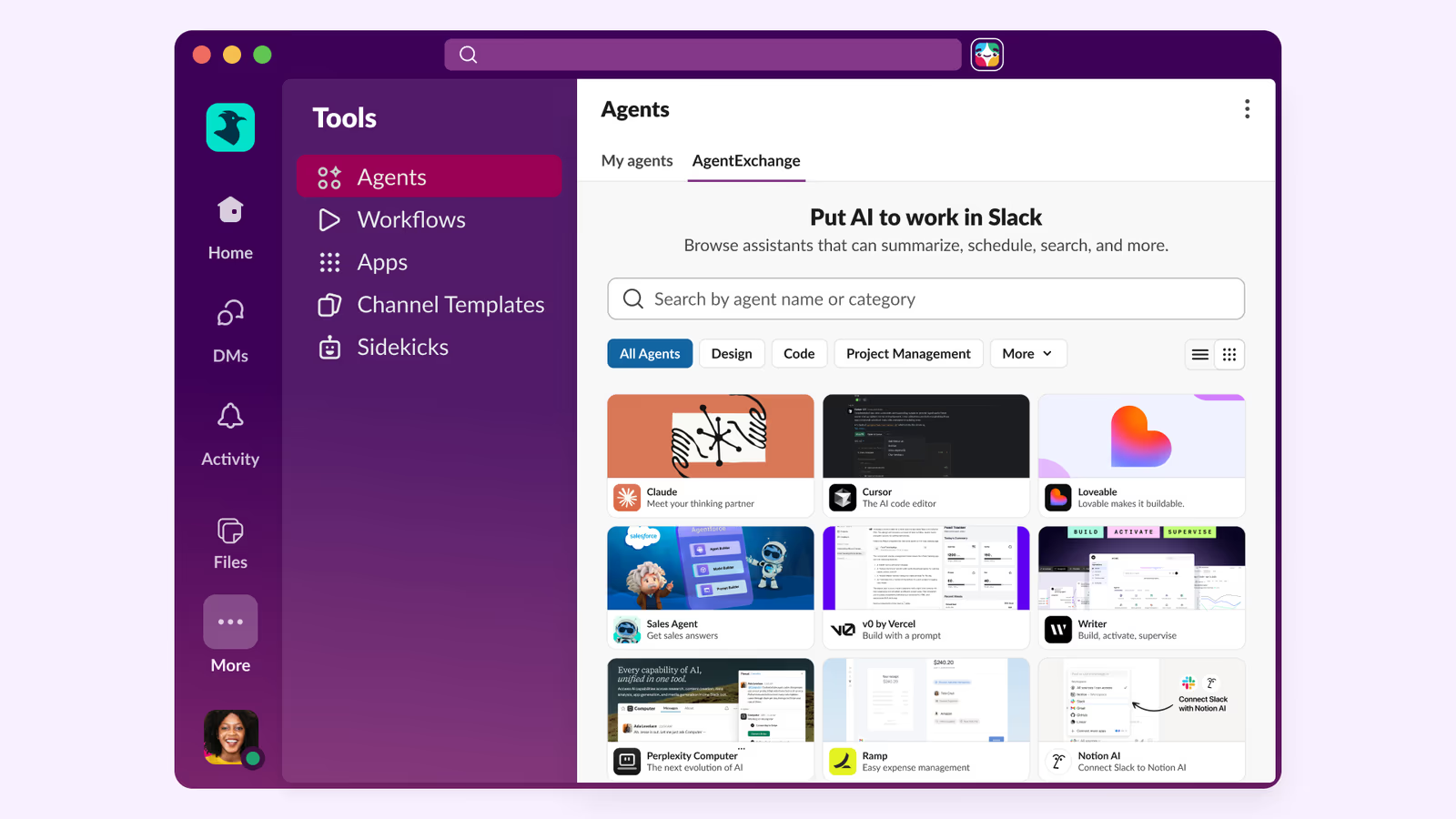
Slack's own announcement of its agent platform frames this as a two-way street: AgentExchange is a unified marketplace where you can "find a vetted agent from AgentExchange like Anthropic's Claude and install it instantly", with Anthropic named alongside partners such as Google and Box. So as well as Claude reaching into Slack via MCP, Claude is available as a first-class agent inside Slack itself.
How to Set It Up
Slack runs an official hosted MCP server at https://mcp.slack.com/mcp. It uses confidential OAuth, so connecting is a consent flow rather than pasting a token, and the agent acts within your Slack permissions.
Claude Desktop and claude.ai (easiest)
On the Customize page, click Connectors, then + to add a connector. Find Slack, add it, and authenticate to your workspace via OAuth. The Slack tools appear once consent completes - no config file needed.
Claude Code
Add the remote server and authenticate with /mcp:
claude mcp add --transport http slack https://mcp.slack.com/mcpThe official Slack plugin (the slackapi/slack-mcp-plugin repo) ships a ready-made .mcp.json with the server URL, client ID and a fixed callback port - useful if you want a checked-in team config rather than per-developer setup. Whichever route you take, grant only the scopes you need and pilot in a safe channel before enabling write across the workspace.
Security and Permissions
Slack's existing permission model composes with the connector: the agent can only see and post to what your account can. Within that, scope tightly. A misfired write is publicly visible; a misfired read isn't great either if it surfaces sensitive content. Read-first, write-by-channel, and review the action history are the safe defaults.
Governance is first-class in Slack's design. Per the official documentation, only directory-published apps or internal apps may use MCP - unlisted apps are prohibited - and workspace admins can approve and manage all MCP client integrations through Slack's standard app-approval process. Slack also warns about the security risks of combining its server with other MCP servers in the same agent, so keep the toolset around a Slack-connected agent trusted and minimal.
Common Problems and Fixes
Slack's connector is widely deployed and well-documented, but a few issues recur - most of them about workspace admin approval and scopes rather than the connector itself.
"App not approved for this workspace"
Many Slack workspaces restrict which apps members can install. If the connector won't authorise, a Slack workspace admin needs to approve the Claude app in the workspace's app-management settings. In tightly governed orgs this is the single most common blocker - raise a request with your Slack admin rather than retrying the OAuth flow.
Search returns nothing
Slack search through the MCP only covers channels the authenticated user is a member of - the agent cannot search channels you haven't joined, and private channels you're not in are invisible. If a "find every conversation about X" query comes back thin, join the relevant channels first, or name a specific channel in the prompt.
An accidental broad post goes out
Unlike most connectors, Slack writes are instantly public. A loose "post an update" prompt can land in the wrong channel in front of the whole company. Start read-only, enable posting on a small set of safe channels, and ask Claude to confirm the target channel before it sends anything during early use.
Rate limits on large workspaces
Broad searches and bulk reads across a big workspace can hit Slack's API rate limits, which surface as slow or partial responses. Scope queries by channel and time window rather than asking the agent to sweep everything, and break large catch-up jobs into smaller asks.
Missing message history
On free and lower-tier Slack plans, message history is capped, so the agent simply cannot read beyond the retained window - older threads return nothing. This is a Slack plan limitation, not a connector fault; upgrading the workspace plan is the only fix.
Pricing and Availability
The Slack MCP server is provided by Slack at no additional charge - connecting Claude does not add a Slack licence fee, and the agent's reads and posts count against your workspace exactly as your own activity would. What is gated is the underlying Slack plan: searchable message history depth, some search features and admin app-approval controls all vary by tier (Free, Pro, Business+, Enterprise Grid).
The connector is generally available and hosted by Slack, so there is nothing to run or update. On Enterprise Grid, expect admin approval and org-wide app policies to govern whether and how the connector can be installed - plan the rollout with your Slack admins rather than enabling it ad hoc.
Limitations
- Public surface: Slack actions are visible in real time, so write errors are visible errors.
- Plan-dependent features: some workspace features (e.g. message history depth) depend on your Slack plan.
- Volume: very large workspaces may hit rate limits on broad searches; scope queries. Slack documents per-tool rate limits that mirror its Web API tiers - roughly 20+ requests per minute at Tier 2, 50+ at Tier 3 and 100+ at Tier 4 - with message search and message sending carrying their own special limits.
- Transport constraints: the server is JSON-RPC 2.0 over Streamable HTTP only - SSE-based connections and Dynamic Client Registration are not supported, so clients must ship a fixed app ID.
Who It Is For
Any team where Slack is the nervous system - which is most knowledge-work organisations today. Engineering teams in particular get an extra dimension via Claude Code in Slack.
The Bottom Line
The Slack connector turns Claude from an outside assistant into a participant in your team's daily conversations - summarising, searching, posting and, with Claude Code, even shipping work. For Slack-first teams it is among the highest-leverage connectors available.
Start in read mode, expand carefully, and let Claude work where your team actually talks. More in the complete Claude Connectors Directory.
Sources: Slack (slack.com Help Centre, docs.slack.dev/ai/slack-mcp-server), Anthropic Claude Code docs, Composio, Strac, Digidog. Image: Slack. Last updated: June 2026.