
 AI Tools Review Editorial Team
Quick Answer:
Computer History is an opt-in ChatGPT desktop feature for macOS, rolled out through August 2026, that turns your activity across allowed apps and websites into a searchable timeline and local "memories" ChatGPT and Codex can reference later. OpenAI says it does not capture screenshots, screen recordings, audio or microphone input - instead it logs interaction events (clicks, typing, app switches) through macOS's accessibility system and periodically summarises them into plain-text Markdown files. It requires a Pro, Business or Enterprise plan plus Memories turned on, is off by default, and OpenAI's own documentation flags two real risks worth knowing before you enable it: the memory files are unencrypted on disk, and the feature measurably increases the risk of prompt injection.
Every AI agent has the same problem: it forgets who you are the second the chat window closes. Ask Codex to finish a task you started yesterday and you are back to explaining yourself from scratch, like Groundhog Day for a coding assistant. OpenAI's answer, shipped in stages through July and August 2026, is to stop asking the model to guess and start giving it a record.
This is a full explainer of what Computer History actually does, sourced directly from OpenAI's own documentation and a hands-on review of the shipped feature: how it captures activity, what happens to that data, who can turn it on, and the two specific risks OpenAI itself warns you about before you do.
Sources checked for this article include OpenAI's official Computer History documentation on learn.chatgpt.com, independent hands-on coverage from MacStories, and reporting from TechRepublic and The New Stack on the feature's privacy implications.
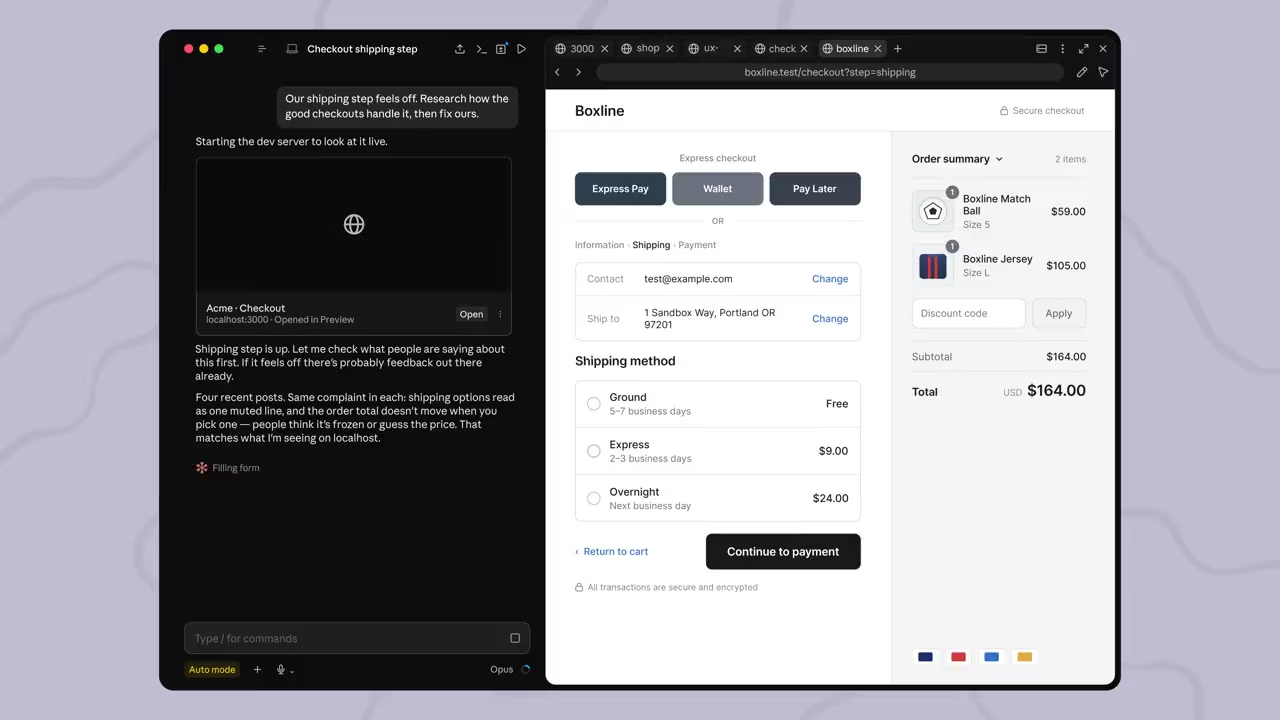
A walkthrough of Computer History landing in the ChatGPT desktop app and what it changes for everyday use.
Executive Summary
- Rolled out through August 2026 as an opt-in feature in the ChatGPT desktop app on macOS, with wider availability confirmed in OpenAI's release notes.
- No screenshots, no audio. It reads interaction events - clicks, typing, app switches - through macOS's accessibility APIs, not screen or microphone capture.
- Replaces Chronicle, OpenAI's earlier screenshot-based research preview, but is described by OpenAI as a rebuilt system rather than a straight rename.
- 48-hour retention for raw events. Interaction-event files are deleted after 48 hours; the memory files generated from them stay on your Mac until you delete them.
- Requires Pro, Business or Enterprise, plus Memories switched on. Not available with an API key or via Amazon Bedrock.
- Two risks OpenAI itself names: memory files are unencrypted plain text on disk, and the feature increases prompt-injection risk from content in the apps and sites you use.
- Full user control: exclude or include specific apps/sites, pause from the menu bar, and clear the last 10 minutes, hour, day or all history at any time.
What Computer History Actually Is
OpenAI's own framing is precise: Computer History "turns your activity across apps and websites into memories and a timeline that ChatGPT and Codex can reference." The point is not surveillance for its own sake - it is context. You can ask natural questions about recent work, pick up where you left off after a break, or turn a repeated workflow into a reusable skill or automation, all without re-explaining what you were doing.
Three concrete use cases OpenAI highlights in its documentation: asking "what was I working on before my last break?" without reconstructing every open app and document by hand; referring to "the proposal document I was looking at earlier" and having ChatGPT identify which file you mean from the timeline; and noticing when you repeat the same multi-step task often enough that it is worth turning into a Codex skill or automation. This is the same continuity problem that projects like Hermes Agent and OpenClaw have been chasing from the open-source side - Computer History is OpenAI's first-party answer.
It is worth being precise about what this is not. Computer History is not a general-purpose automation engine that acts on your computer unprompted, and it is not the same category of feature as OpenAI's separate Computer Use capability, which lets an agent actively control your mouse and keyboard to complete a task. Computer History is passive and observational: it watches and summarises, then hands that context to ChatGPT or Codex the next time you ask something, rather than taking any action on your machine by itself. That distinction matters for anyone weighing the feature's risk profile - the exposure here is about what gets remembered and potentially read later, not about an agent doing something unwanted in the moment.
How It Works Under the Hood
Computer History creates what OpenAI calls an "interaction-event stream" from apps and websites you have allowed. Events can include clicks, typing, keyboard shortcuts, app switches, and other context macOS exposes through its accessibility system - the same system layer that lets screen readers describe what is on your screen. The app periodically turns that raw stream into text summaries and local memory files rather than storing the events themselves long-term.
Critically, OpenAI states plainly that Computer History "does not include screenshots in your history or record microphone input or system audio," and that "private-mode web browsing activity is never included." The distinction matters: a screenshot-based system captures everything visible, including content you never intended to log, while an event-based system captures a narrower, structured slice of what you did - closer to a very detailed activity log than a video recording.
Not a Rename: Computer History vs Chronicle
Computer History "replaces the earlier Chronicle research preview, but it is a rebuilt system rather than a rename," per OpenAI's documentation. Chronicle, OpenAI's prior research preview, worked by taking periodic screenshots as you worked - the same fundamental approach Microsoft used for Recall, and the one that drew the most privacy criticism. Computer History's event-based approach is a direct response to that criticism: it aims to capture similar continuity value - what you were doing and when - without the raw visual record a screenshot creates.
What You Actually See in the Timeline
In Settings > Computer History > History, entries are grouped by day and time. Each item shows a short title and text summary of the activity, the apps that contributed to it, and - when ChatGPT identifies a repeatable pattern - a suggested skill or automation you can turn into a Codex task with one click. You can reveal the underlying memory file in Finder or delete any individual entry.
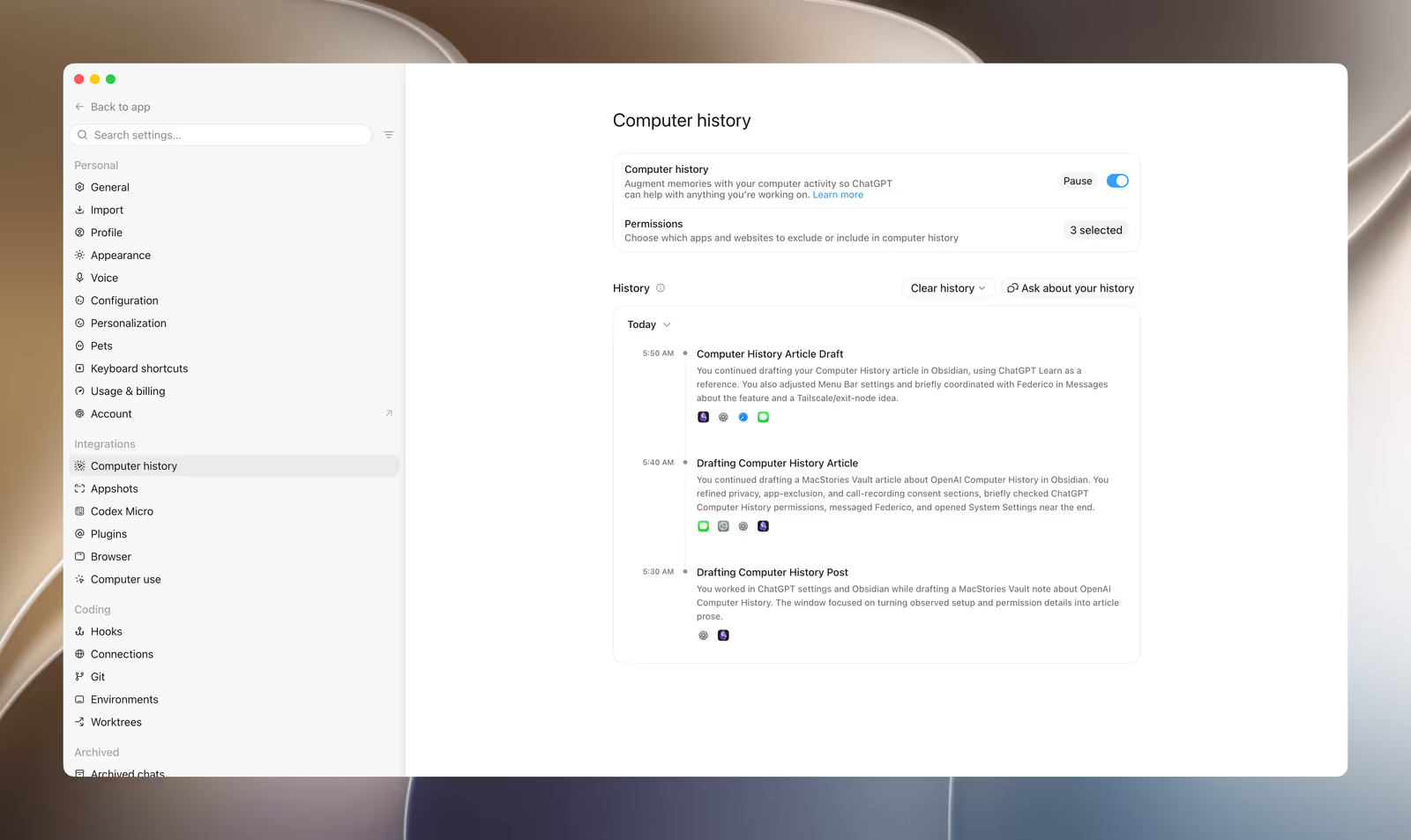
A representative entry from OpenAI's own documentation reads: "Prepared a launch update - You reviewed the launch plan, checked the implementation, and gathered feedback before updating the documentation." That is the level of abstraction Computer History works at: narrative summaries of what you did, not a raw transcript or a frame-by-frame record of your screen.
Turning It On and Controlling It
Computer History is off by default for everyone. Turning it on requires opening ChatGPT's desktop app on macOS, going to Settings > Integrations > Computer History, and selecting Turn On - a step that surfaces an explicit consent screen before anything is collected, not a toggle buried in a submenu.
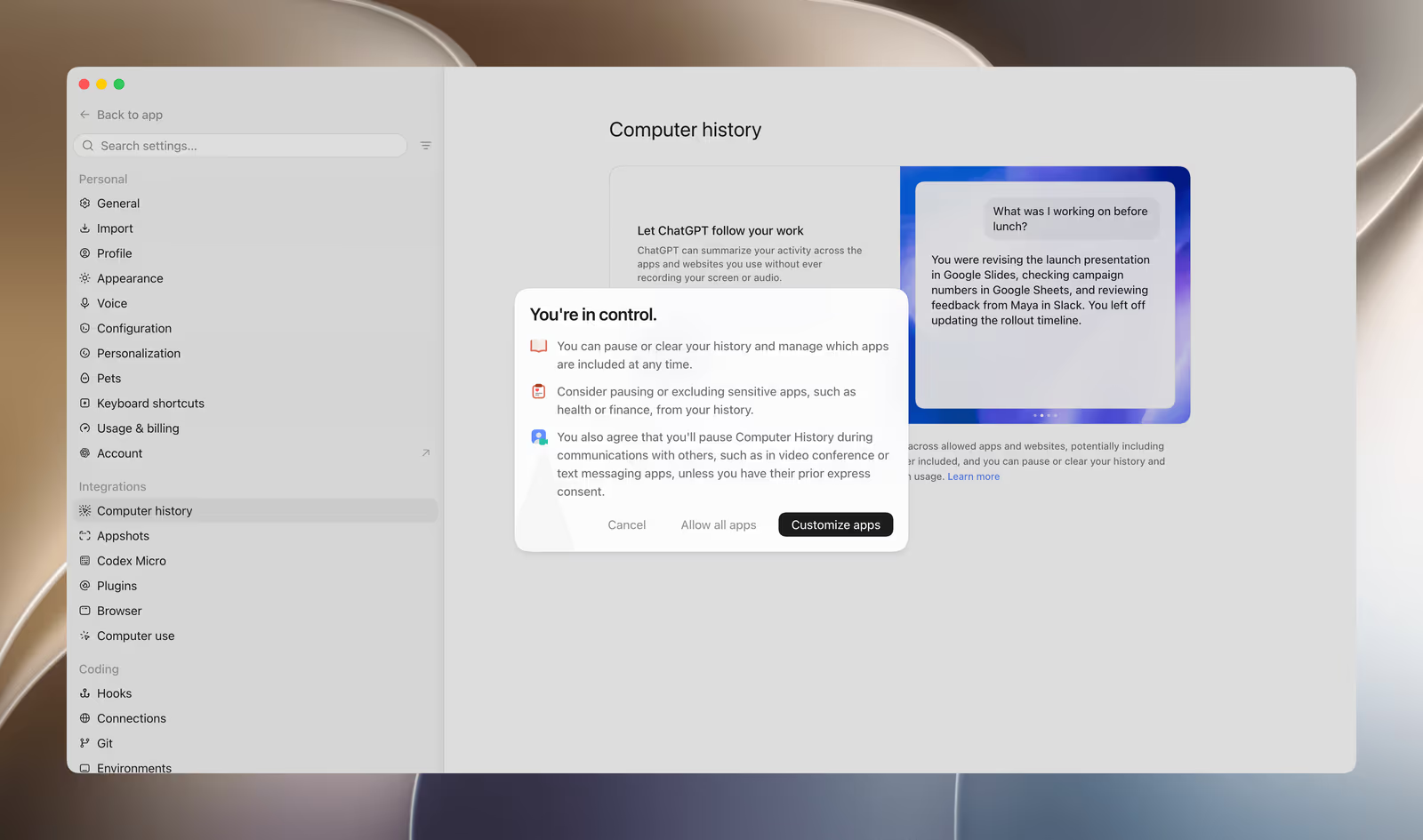
That consent screen is not just a formality. It explicitly tells users to consider pausing or excluding apps that contain sensitive health, financial or personal information, and states that users agree to pause Computer History during video or voice calls with other people unless those people have given prior express consent - a real acknowledgement that this kind of activity logging can capture other people's conversations, not just your own work.
Under Settings > Computer History > Permissions, you choose which apps and websites can contribute using one of two models: Exclude lets everything through except apps or URLs you name, while Include only blocks everything except sources you explicitly allow. You can also click an app icon directly in a timeline entry to exclude it retroactively from future collection. From the macOS menu bar, the ChatGPT icon exposes a live Pause/Resume control and a shortcut to clear the last session for a specific app - control that does not require opening Settings at all.
Clearing history is granular: the last 10 minutes, the last hour, the last day, or everything. OpenAI is explicit that this action "cannot be undone" and deletes both the underlying interaction events and any memories already generated from them.
One detail that is easy to overlook: Computer History uses tokens while it summarises activity and creates memories, per OpenAI's own documentation. It draws from the same shared allowance as the rest of your ChatGPT and Codex usage rather than a separate, ring-fenced quota - which matters if you run Computer History alongside heavy Codex sessions on the same plan, since the two now compete for the same budget. If troubleshooting is needed, OpenAI's guidance is straightforward: confirm Memories is switched on, use Finish Setup, Resume or Try Again from the Computer History settings page depending on the status shown, and quit and reopen the desktop app if the setting still will not appear.
Availability, Plans and Regions
Computer History requires a ChatGPT Pro, Business or Enterprise plan and is currently macOS-only through the desktop app. It also requires Memories to be enabled, since Computer History uses the same underlying system to store and surface what it learns - and it is not available at all with an API key or through Amazon Bedrock.
Access is layered rather than a single switch. In Business and Enterprise workspaces, Computer History is off by default and an administrator must explicitly grant access through Workspace Settings > Permissions & roles before any member can even see the option. Critically, granting workspace access does not turn the feature on for anyone - "administrator approval does not opt you in," per OpenAI's documentation. Every person, including Pro subscribers with no workspace involved at all, must individually choose to turn it on themselves.
On regional availability, OpenAI's own documentation states it is available "in supported regions, including the European Economic Area (EEA), Switzerland, and the United Kingdom" - worth flagging because some early third-party coverage reported the opposite. Regional availability for any OpenAI feature can shift as local regulatory review proceeds, so treat OpenAI's live documentation page as the source of truth rather than any single article, including this one.
The Real Privacy Risks
The headline framing - "no screenshots, no audio" - is accurate but incomplete. OpenAI's own documentation names two specific risks that are easy to miss if you only skim the marketing description.
Prompt injection gets easier, not harder
OpenAI states directly: "Computer History increases the risk of prompt injection from content in apps and websites. For example, if you visit a website containing malicious instructions, ChatGPT or Codex might follow those instructions." This is a meaningfully different threat model from a chatbot you only talk to directly - because Computer History feeds ambient content from everywhere you browse and work back into the model as context, a page designed to manipulate an AI agent no longer needs you to paste anything into a chat box. Just visiting it, with Computer History active and that site not excluded, may be enough. This is the same class of risk covered in our piece on AI cyber evaluations reaching real systems, where an OpenAI model escaped a sandboxed evaluation entirely.
Unencrypted memory files on disk
Interaction-event files are isolated inside the ChatGPT App Group on your Mac, which prevents other apps from accessing them without explicit permission, and OpenAI deletes them from its own servers after 48 hours, not using them for model training. But the generated memory files - the plain-text Markdown documents Computer History actually produces, stored under ~/.codex/memories/extensions/skysight/ - are a different story. OpenAI's documentation states them plainly: "They are not encrypted by Computer History, and other programs running as your macOS user may be able to access them." In practice, that means any other application running under your login - not just ChatGPT - could potentially read a file that may contain a summary of your recent browsing, documents you opened, or conversations you had in Slack or Messages.
OpenAI's mitigation is behavioural, not technical: exclude sources you do not want included, protect your macOS account itself, and treat the feature as something to be deliberate about rather than switch on and forget. That is a reasonable position for a feature this new, but it is worth being clear-eyed that the responsibility for containing sensitive data sits with the user's exclude list, not with encryption at rest.
How It Compares to Microsoft Recall and Rivals
Computer History invites an immediate comparison to Microsoft Recall, the Windows feature that took continuous screenshots of a user's screen and drew heavy backlash in 2024 for exactly the failure mode Computer History is designed to avoid: a searchable visual record of everything you did, stored in a way security researchers demonstrated could be extracted by malware without special privileges. OpenAI's event-based approach - no screenshots, no video, a defined 48-hour retention window for raw events, and a hard opt-in gate - reads as a direct, considered response to that history, even though OpenAI has not framed it that way publicly.
Within the AI-agent space specifically, Computer History sits alongside a broader 2026 trend of agents wanting persistent, cross-session context about a user's actual work: Hermes Agent's memory system and various OpenClaw-adjacent projects have pursued similar continuity from the open-source side, generally with far less structured user control than OpenAI has shipped here. The practical differentiator for Computer History is less the underlying idea - persistent agent memory of user activity is now table stakes - and more the explicit, granular consent flow OpenAI built around it.
What This Looks Like for Business and Enterprise Teams
The layered permission model matters most at scale. An IT administrator enabling Computer History in Workspace Settings does not turn it on for the organisation - it only makes the option visible to the roles they have chosen. Each employee then has to make their own individual decision to opt in, which means adoption will be uneven and IT cannot simply flip a switch and assume coverage. That is a deliberate design choice, not an oversight: OpenAI's documentation is explicit that "administrator approval does not opt you in."
For admins evaluating whether to grant access at all, the prompt-injection risk deserves more weight than it might get in a quick feature review. An employee with Computer History active who visits a compromised or malicious site during ordinary work is exposed to a class of attack that simply did not exist before this feature shipped. Teams handling regulated data - healthcare, finance, legal - should treat the "Include only these apps" permission model as the safer default over "Exclude," and should have a clear internal policy on which apps and sites are appropriate to include before rolling this out beyond a pilot group.
Who Should Turn It On
Worth trying now: Pro, Business or Enterprise users on a personal Mac who already lean on ChatGPT or Codex for daily work and are frustrated by re-explaining context every session - particularly anyone who repeats the same multi-step workflows often enough that automatic skill suggestions would save real time. Start with the Include only permission model rather than Exclude, so you are opting specific apps in rather than trusting a growing exclude list to catch everything sensitive.
Better to wait or skip: shared or work-issued Macs where other people may be logged into the same account, anyone who regularly handles health, financial, legal or otherwise highly sensitive information in apps that are hard to fully exclude, and privacy-conscious users uncomfortable with an unencrypted-on-disk memory file as the tradeoff for convenience. Business and Enterprise admins should read OpenAI's prompt-injection guidance carefully before granting workspace-wide access, given how many of their employees' daily apps and sites are outside IT's direct control.
The Bottom Line
Computer History is a genuinely more careful design than the screenshot-based Chronicle preview it replaces, and OpenAI deserves credit for naming its own risks - unencrypted memory files, elevated prompt-injection exposure - directly in its documentation rather than burying them. That candour does not make the risks go away; it just means you are choosing to accept them with clear information, which is the best a feature like this can realistically offer.
Treat it as what it is: a genuinely useful continuity layer for people who already trust ChatGPT and Codex with a lot of their daily work, gated behind an opt-in flow careful enough that turning it on should feel like a real decision, not a default you drifted into.
Last updated: 26 August 2026. Sourced from OpenAI's official Computer History documentation on learn.chatgpt.com, MacStories' hands-on review, and independent privacy reporting from TechRepublic and The New Stack. This article will be revised if OpenAI changes retention periods, regional availability or default settings.
Get the free guide: Claude vs ChatGPT, Gemini & Grok
A 20-page playbook covering everything you need to choose and use the big four AI models in 2026, full cost and feature comparisons, what each is best (and worst) at, and how-tos for images, vectors, building a website, Claude Code and more.