 AI Tools Review Editorial Team
Quick Answer:
Dynamic Workflows are a Google Antigravity feature, started with the /run-workflow command, in which the agent writes a short Python script that coordinates a team of helper agents. The script runs agents in parallel with parallel() or in order with pipeline(), groups them into named phases, and collects a structured result from each one that matches a JSON Schema. You see and approve the script before it runs. Google says the feature is available in the Antigravity app and CLI on Google AI Pro and Google AI Ultra plans. The point is repeatability: the same task produces the same sequence of steps every time, instead of a different improvised plan on each run.
Ask an AI agent to do the same job twice and you often get two different plans. That is fine for a one-off question and a real problem for anything you want to run every week. Google's answer in Antigravity is not a smarter model but a more boring one in the best sense: let the agent write a small program that orchestrates the other agents, show you that program, and run it the same way every time.
This guide is based on Google's official Antigravity documentation for Dynamic Workflows, launch coverage from AlphaSignal and Hermes, and two walkthroughs from Julian Goldie, whose videos covered the feature on 16/11/2026 and 17/11/2026. Where Google has not published a detail, such as agent limits or pricing per workflow, we say so. For background on the platform, read our Antigravity 2.0 review and our guide to Antigravity skills.
Julian Goldie explains why repeatable, scripted agent teams matter and walks through approving a workflow before it runs.
Executive Summary
- What it is: a mode where Antigravity's agent writes and runs a Python script that coordinates many helper agents, rather than handling a big task in one long conversation.
- How you start it:
/run-workflow <task>, or describe the workflow in plain English. In the app,/run-workplus Tab inserts the command. - Control flow:
parallel(items, fn)runs agents at the same time;pipeline(items, fn)runs them one by one. Work is grouped into named phases withphase(). - Structured output: each agent returns a result that is validated against a JSON Schema, so the script gets clean data rather than chat text.
- Human checkpoint: the script is shown for approval before it runs, unless your permission preset (such as Turbo) allows it. Each helper agent also follows your permission settings.
- Isolation: agents can share your workspace, get their own Git worktree (
workspace="branch") or a new working copy ("share"). - Model choice per agent:
flash_liteandflashfor cheap high-volume checks,profor deep reasoning, or inherit the conversation's model. - Reusable: save a working script as a
.pyfile and rerun it later with/run-workflow Run scripts/review-changes.py. - Availability: Google AI Pro and Google AI Ultra, in the Antigravity app and CLI. No separate fee is listed.
What Dynamic Workflows Are
Google's documentation describes the feature in one line: "the agent writes and runs a short Python script that coordinates many agents for you." You do not write the Python yourself. You describe the job, the agent reads a built-in skill called run-workflow, and it produces a script that splits the work, hands each piece to a helper agent, and gathers the results.
Google suggests the feature for tasks that break into many independent pieces, such as reviewing every changed file, or into staged steps, such as find bugs, fix them and then verify the fixes. In both cases you want scripted control flow rather than one long conversation that drifts as it fills up with file contents and test logs.
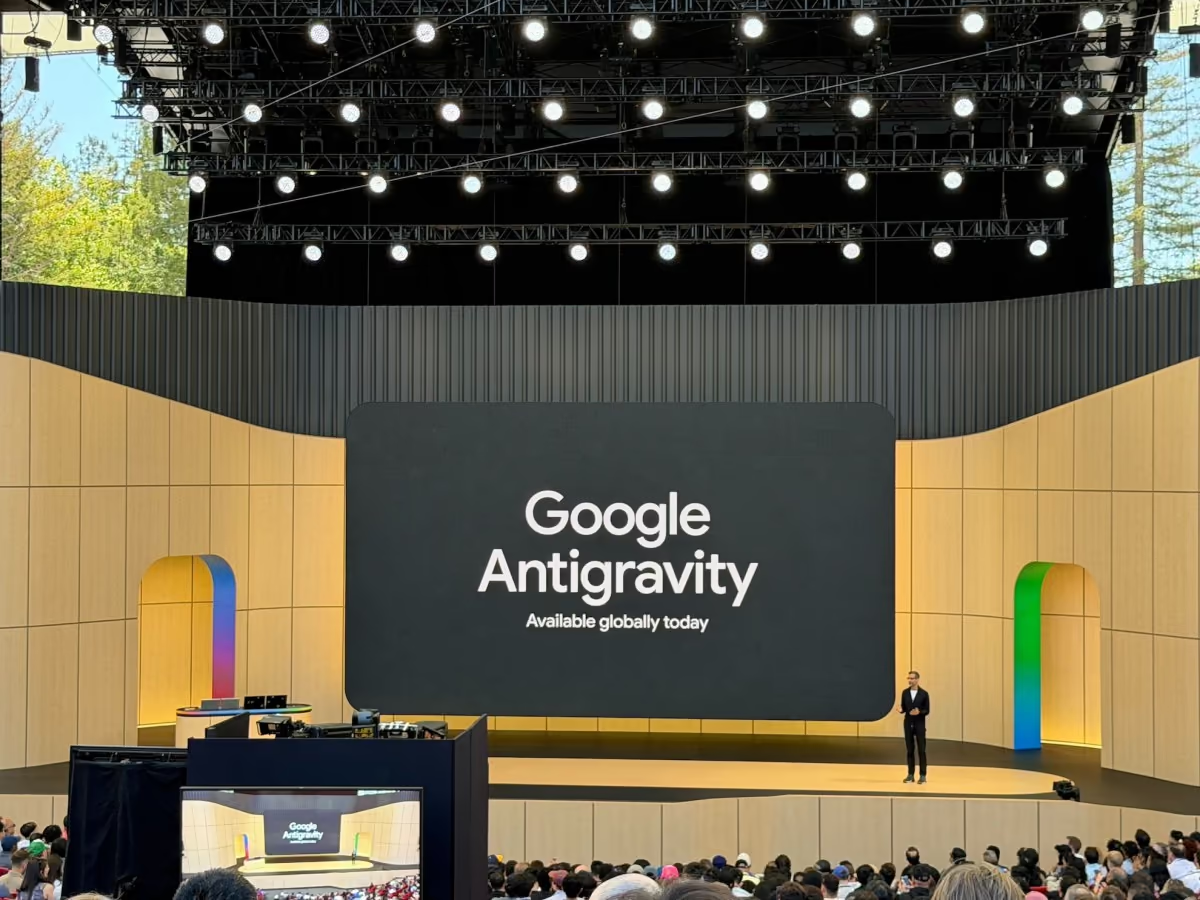
This is the next step after the dynamic subagents Google introduced with Antigravity 2.0 at Google I/O on 19/05/2026. Subagents let the main agent hand off a task. Dynamic Workflows let it hand off a whole plan, written as code, with many agents running under it. If you have read our explainer on agent swarms, think of this as the opposite design choice: central, scripted control instead of agents negotiating among themselves.
Why Scripted Orchestration Matters
Most AI agents today plan in natural language. They decide what to do next based on everything in their context, which is flexible but unpredictable. Run the same "review my pull request" prompt on Monday and Friday and the agent may check different things in a different order. For teams that want an audit trail, a repeatable release check or a weekly report, that variability is the main obstacle.
Dynamic Workflows move the plan out of the model's head and into a file. Google lists four benefits:
- Parallel and sequential phases. Agents run at the same time or one after another, grouped into named phases you can follow.
- A clean main conversation. Each workflow agent has its own conversation. File reads, searches and test logs stay out of your main context, which helps the main agent stay on track during long sessions.
- Single-use and multi-turn agents. An agent can do one job and finish, or persist across turns, for example a reviewer who later checks the fixes.
- Reusable scripts. A script that works can be saved and run again, which turns a good one-off session into a repeatable process.
The second point is easy to overlook. Context is the scarcest resource in agentic coding. Our coverage of Claude Code cross-session messaging and Anthropic's always-on agents guide both come back to the same lesson: keep the coordinator's context small and let workers handle the detail. Dynamic Workflows apply that principle by design.
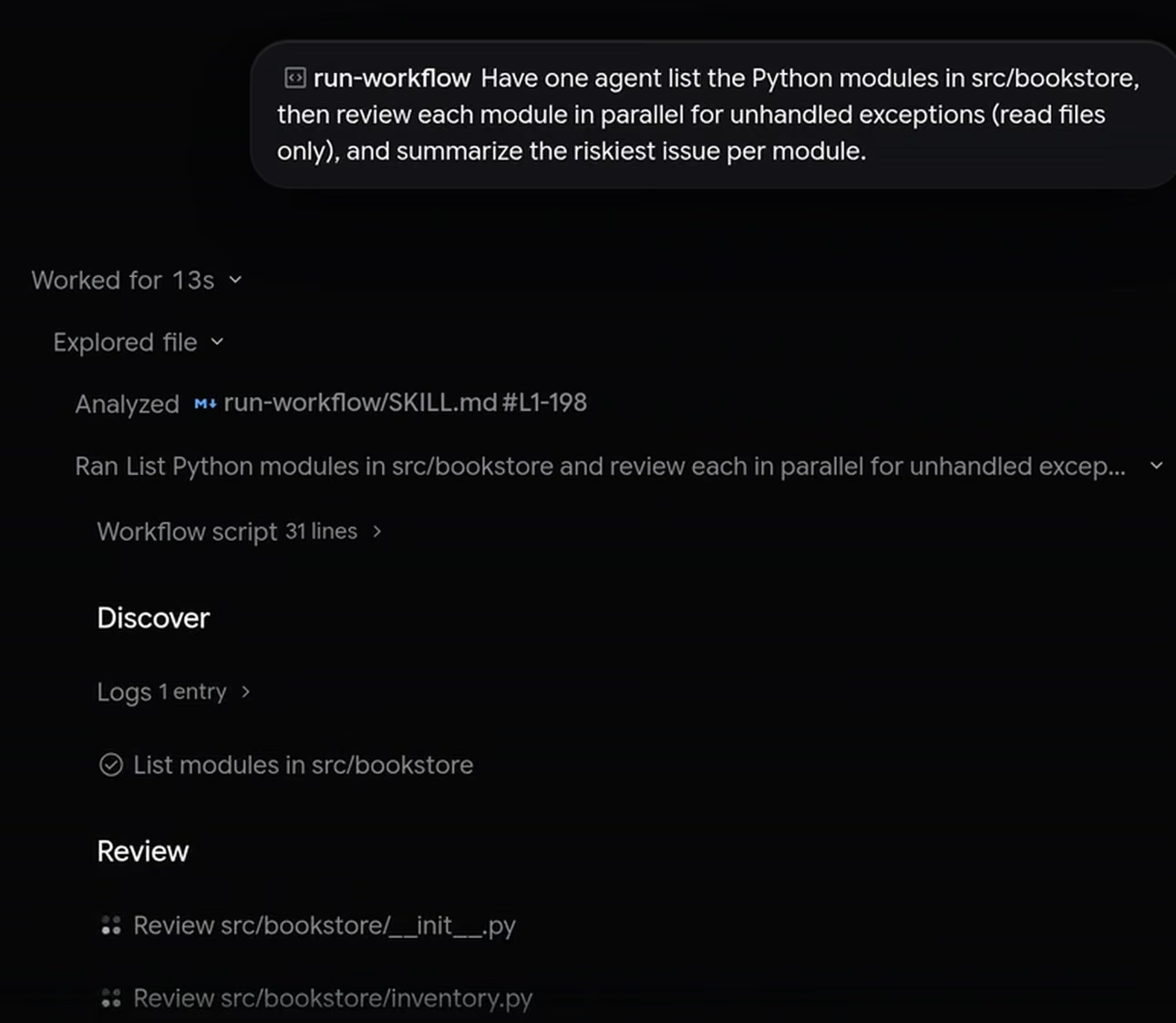
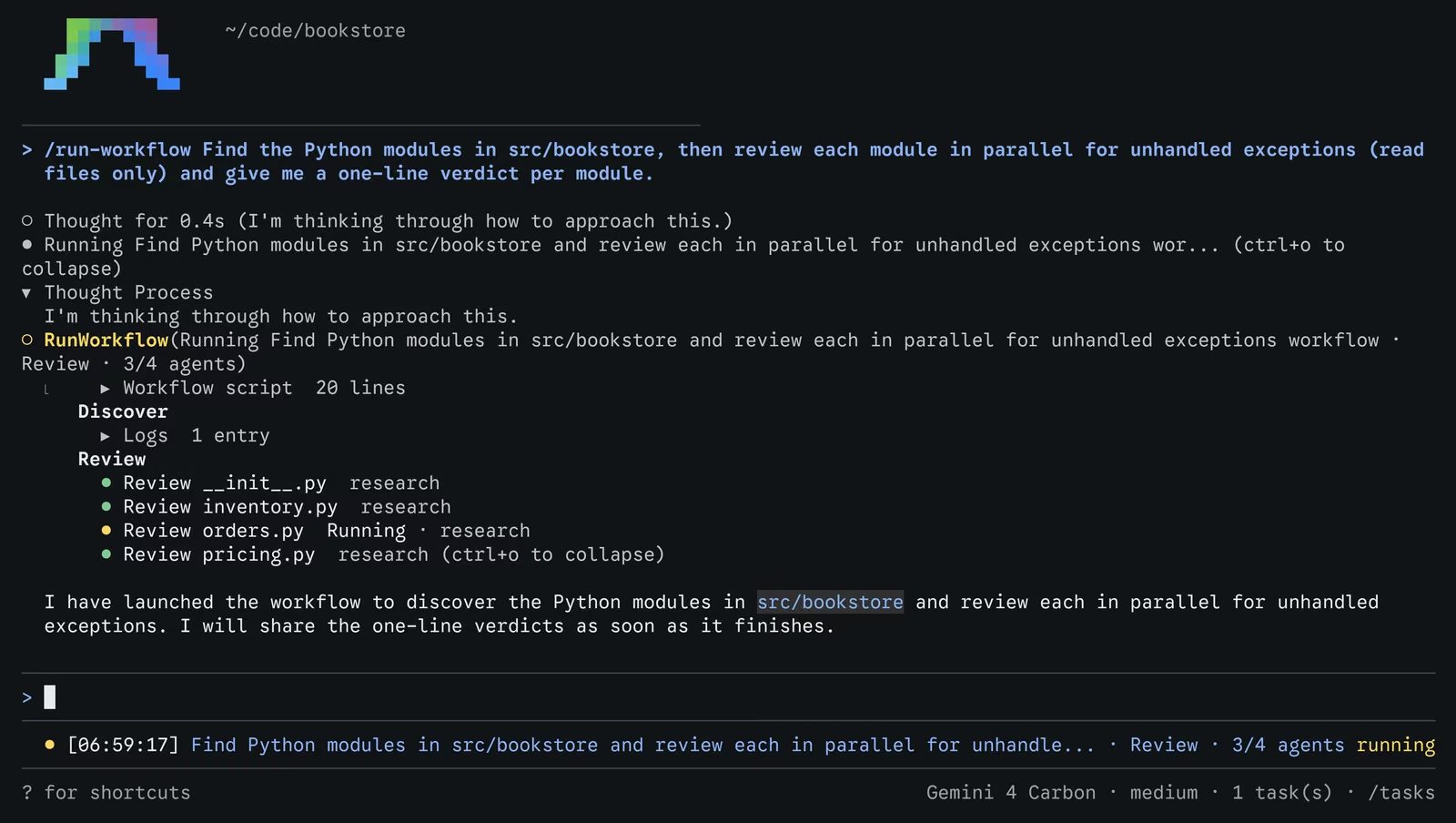
A first look at /run-workflow: typing one command, reviewing the generated script, and watching helper agents run in phases.
How a Workflow Runs, Step by Step
Google documents a four-stage loop:
- Write. The agent reads the built-in
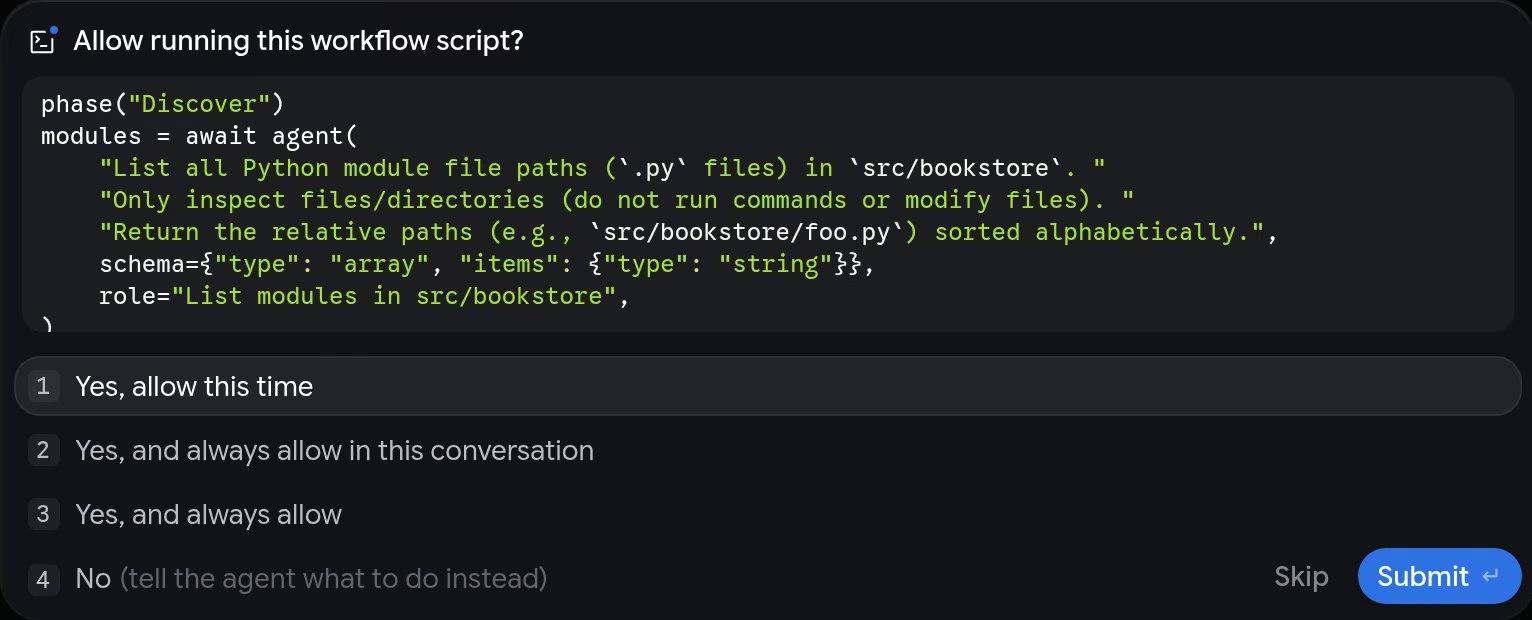
run-workflowskill and writes a Python script for your task. - Approve. Antigravity shows the script for approval unless your permission preset allows it. To change the plan, you deny it and describe what you want instead.
- Run. The workflow runs in the background while you keep working in the main conversation.
- Summarise. When it finishes, the main agent receives the logs and output and summarises the results for you.
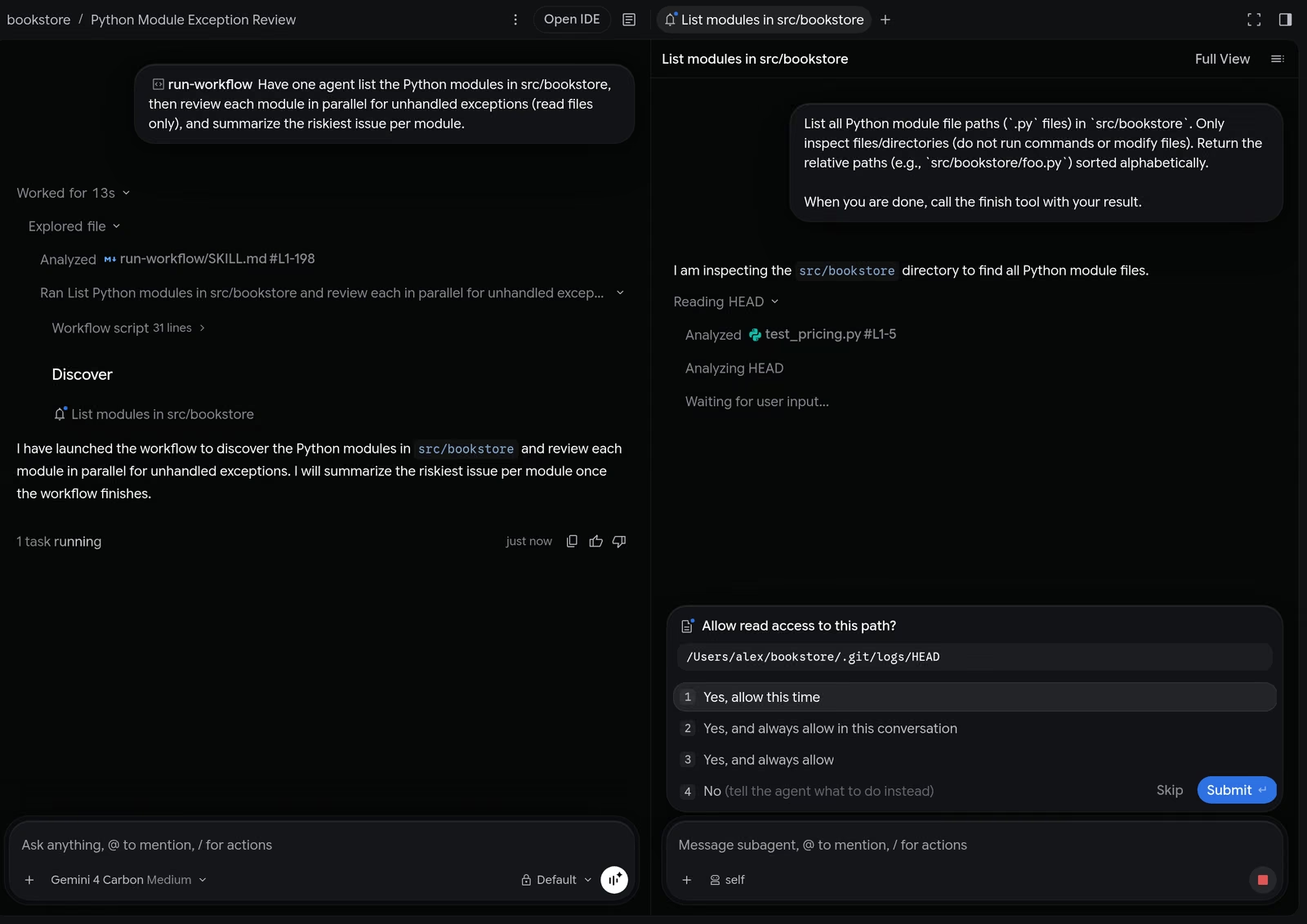
The approval prompt in the app offers four choices: "Yes, allow this time", "Yes, and always allow in this conversation", "Yes, and always allow" and "No". The CLI offers "Yes, run command" and "No, cancel". An important detail: an approval covers that exact script. A command prefix rule, which you might use to allow all npm test commands, cannot cover a Python script, so you cannot accidentally pre-approve every future workflow with a broad rule.
The runtime
Scripts run in a separate Python process using Antigravity's bundled Python, so there is nothing to install. The first run unpacks it, which takes a moment. If you want a different interpreter, set the ANTIGRAVITY_PYTHON environment variable to a name on your PATH or a full path; it must be Python 3.8 or later. One quirk on macOS: if you open the app from the Dock, it does not see your shell's environment variables, so a variable set in .zshrc will not apply. If security software blocks the bundled Python, Antigravity falls back to a suitable Python on your system, and stops with installation instructions if none is found.
The Script Building Blocks
You never have to write a workflow script, but knowing what it can contain helps you ask for better ones and review them properly before you click approve. Google documents these primitives:
| Building block | What it does |
|---|---|
phase(name) | Starts a named phase, such as Discover, Review or Verify. |
log(*args) | Adds a line to the current phase and to the result the main agent receives. |
agent(prompt, schema, role, type_name, workspace, model) | Defines a helper agent. await agent(...) runs it once; assigning it and calling it again keeps a multi-turn conversation. |
parallel(items, fn) | Runs fn(item) for every item at once and returns results in item order. If one item fails, the others are cancelled. |
pipeline(items, fn) | Runs one item at a time, in order. |
await trajectory(...) | Returns earlier steps of the current conversation, filtered by step type, tool name, index range or the last N steps. |
args | A dictionary of optional arguments passed to the script. |
CONVERSATION_ID, STEP_INDEX, WORKSPACES | The conversation ID, the workflow's step index and the workspace folders. The script runs in the primary folder. |
Note the failure rule on parallel(): one failing item cancels the rest. That is a sensible default for tasks where partial results are useless, but if you are reviewing 40 files and want verdicts for the 39 that worked, ask the agent to catch errors inside each item so a single failure does not sink the batch.
Agents, models and workspaces
Three parameters on agent() do most of the work:
modeldefaults toinherit, the model of your conversation. You can chooseflash_liteorflashfor fast, high-volume checks andprofor deeper reasoning. If a tier is not available on your plan, the agent fails and lists the valid choices. Mixing models is the main cost lever: a fleet of Flash reviewers with one Pro agent to weigh the findings is far cheaper than running everything on the top model. See our Gemini 4 Hydrogen review and Gemini 4 Carbon guide for what the current tiers can do.type_namedefaults toself, which copies the current agent's configuration and tools. You can use the built-in, read-onlyresearchagent, or a named custom subagent you have defined. Read-only research agents are the safest choice for review and audit workflows.workspacedefaults toinherit, the current workspace.branchgives each agent an isolated Git worktree;sharegives each a new working copy that shares repository storage. Usebranchwhenever more than one agent will edit files at the same time.
Structured results with JSON Schema
Every agent can be given a schema: a JSON Schema describing the shape of its answer. The agent returns its result through a finish tool that validates against that schema, and the script receives the parsed value. For a code review, that might be an object with a file name, a severity and a one-line verdict. For a free-form answer, the schema can simply be {"type": "string"}.
This is what makes the output machine-readable. Because the script receives data rather than prose, it can sort findings, filter them, pass them to the next phase or write them to a file. It is the same pattern that has made structured outputs popular in agent frameworks: validated data at every hand-off reduces the chance that one agent's rambling answer confuses the next.
Monitoring and Steering
A workflow appears as a single step in your conversation, showing its description, current phase and agent progress, for example "3/4 agents". Expanding the step reveals the script (collapsed by default), the phases, logs, agent cards and output. Each agent card shows the agent's role and state: running, waiting for approval, or finished. Clicking a card opens that agent's own conversation, where you can read its prompt, watch its tool calls, approve requests or send it a message.
Workflow agents do not clutter your main conversation list. In the app, workflows are listed under Background Tasks in the side panel's Overview. In the CLI, the status line shows "1 task(s) · /tasks"; Ctrl+O expands the phase tree, /tasks or Ctrl+T opens task details, Alt+J jumps to a pending agent approval and Ctrl+K approves it. When the workflow finishes, the step title changes from "Running" to "Ran".
To stop a workflow early, Google's advice is simple: stop the conversation. Stopping the parent conversation stops every running workflow agent too. There is no separate kill switch per workflow in the documentation we reviewed.
Four Worked Examples
Google's documentation gives four example prompts. Each shows a different pattern worth copying.
1. Parallel review
List the Python files changed since main, review each one in parallel for unhandled exceptions using the Flash model, and log a one-line verdict per file. This is the "fan out, cheap model" pattern: lots of small, independent checks, each in its own clean context. It is the easiest place to start because it is read-only.
2. Review, fix, verify
A persistent Reviewer lists bugs in src/billing; one Fixer per bug runs in parallel; then the same Reviewer confirms the fixes. The trick is the multi-turn reviewer. Because it keeps its conversation, it checks the fixes against the problems it originally found, rather than a fresh agent re-reviewing from scratch.
3. Isolated workspaces
For each package under packages/, an agent in its own branch replaces a deprecated request() helper with fetchJson(), runs npm test and logs the result. This is the monorepo migration pattern. Each agent works in its own worktree, so parallel edits never collide, and you review one branch per package.
4. Sequential test-then-fix
Process BUG-1.md and BUG-2.md one at a time, with one agent writing a failing pytest test and another fixing the code. This uses pipeline(), because the bugs may touch the same files and you want each fix to land before the next one starts. Writing the failing test first is a good discipline for AI fixes: it proves the bug exists and gives the fixer a clear target.
Once any of these works, ask Antigravity to save the script, for example to scripts/review-changes.py, and rerun it later with /run-workflow Run scripts/review-changes.py. You still approve it each time unless you chose to always allow it.
Workflows vs Subagents vs /swarm
Antigravity now has several ways to put more than one model to work, and Google's documentation includes a comparison. Here is our summary:
| Option | How it works | Best for |
|---|---|---|
| Orchestrator | One conversation; a planner model routes routine tool calls to a lighter model. | Everyday work at lower cost. |
| Subagents | Delegate a single task while you keep working. | One side job, such as research. |
| Dynamic Workflows | A script controls the flow; agents return structured results to the script and do not talk to each other. | Repeatable, many-piece or staged tasks. |
/swarm | Peer agents coordinate directly on a shared message board using @name. | Open-ended collaboration. |
/boost | Deep reasoning on hard bugs with independent verification. | A single stubborn problem. |
/teamwork | A collaborative team for large, multi-milestone projects, starting with a scoping interview. | Big builds over many steps. |
The key distinction is between workflows and swarms. A swarm, which we covered in our Gemini 4 Carbon launch piece, is emergent: agents decide among themselves who does what. A workflow is deterministic: the script decides. If you need to explain to a manager or auditor exactly what the AI did, a workflow is far easier to defend. If you are exploring a problem you do not yet understand, a swarm or /teamwork may find a better path. For planning before either, see our /plan guide.
Permissions and Safety
Running many agents at once multiplies both the work done and the potential for damage. Google has built in three layers of control:
- Script approval. You see the orchestration code before it runs. Read it. Check that agents marked as reviewers are read-only and that editing agents use
workspace="branch". - Per-agent permissions. Each workflow agent follows your permission preset and asks for approval in its own conversation, waiting for your answer. A workflow does not get more power than you have granted the main agent.
- A single stop. Stopping the parent conversation stops every workflow agent.
The weak point is convenience. "Yes, and always allow" and permissive presets such as Turbo remove the review step, which is exactly where you would catch a script that edits files in the shared workspace or runs a destructive command. Our reporting on hallusquatting and on the wider risks of AI agent security shows how quickly unattended agents can pull in a malicious package or act on bad input. With ten agents running in parallel, one bad instruction can be repeated ten times before you notice.
Our recommendations for UK teams:
- Start with read-only workflows (reviews, audits, reports) before any that edit code.
- Insist on
workspace="branch"for any agent that writes files, and review each branch as a normal pull request. - Keep "always allow" for saved scripts you have read and tested, never for new ones.
- Keep secrets out of the workspace. Helper agents inherit tools and file access.
- If you handle personal data, record what each workflow touches to support your UK GDPR records of processing.
Plans, Limits and Cost
Google's documentation lists Dynamic Workflows as available on Google AI Pro and Google AI Ultra plans, in both the Antigravity app and the Antigravity CLI. It does not list a separate price for the feature, nor numeric limits on the number of agents, timeouts or quotas per workflow. As we reported in our Antigravity 2.0 review, Google restructured its subscriptions in 2026 around an AI Pro plan at $20 (about £16) a month and an AI Ultra tier with higher limits. Check Google's current UK pricing before you commit, as plan names and limits have changed several times this year.
The practical cost is plan usage. Every helper agent is a model session, and parallel fan-outs can use a day's allowance quickly. Three habits keep this under control:
- Use Flash for volume. Ask for
model="flash"or"flash_lite"on the many small agents and reserveprofor the one agent that weighs the results. - Bound the fan-out. "Review the 10 most-changed files" costs far less than "review every file in the repo".
- Use structured results. Short schema-validated outputs mean less text for the main agent to read and summarise.
Uses Beyond Code
Google's examples are all software tasks, but the pattern is general. Julian Goldie's videos focus on marketing and SEO teams, and Antigravity's browser agent, which he covered on 17/11/2026, means helper agents can open real web pages. Workflows that fit the same shape include:
- Competitor checks: one agent per competitor site extracts prices and offers into a fixed schema; a final agent compares them.
- Content audits: one agent per page on your sitemap checks title length, meta description and internal links, returning a pass or fail per page.
- Document review: one agent per contract extracts renewal dates and notice periods; a pipeline then drafts reminders.
- Weekly reporting: a saved script gathers the same data in the same order every Monday, so the reports are comparable.
The rule of thumb: if you would describe the job to a person as "do this same check for each of these things, then pull it together", it is a good fit for a dynamic workflow. For non-coding agents that live in chat tools rather than an IDE, compare our guides to Perplexity Teammates, Grok Bot 1.0 and OpenAI Dots.
Limitations
- No published limits. Google does not state maximum agents per workflow, timeouts or quotas, which makes capacity planning guesswork.
- Repeatable flow, not repeatable answers. The script fixes the order of steps. Each agent's answer can still vary between runs, so a saved workflow is more consistent, not perfectly deterministic.
- All-or-nothing parallel runs. One failing item in
parallel()cancels the rest unless the script handles errors. - You have to read Python. Approval is only meaningful if you can follow the script. Non-developers will tend to click "allow" without checking.
- No agent-to-agent talk. By design, helper agents report to the script, not to each other. Problems that need negotiation fit
/swarmbetter. - Plan-gated. Free users do not get the feature.
- Merge work remains. Isolated branches avoid clashes during the run but you still review and merge each one.
How It Compares
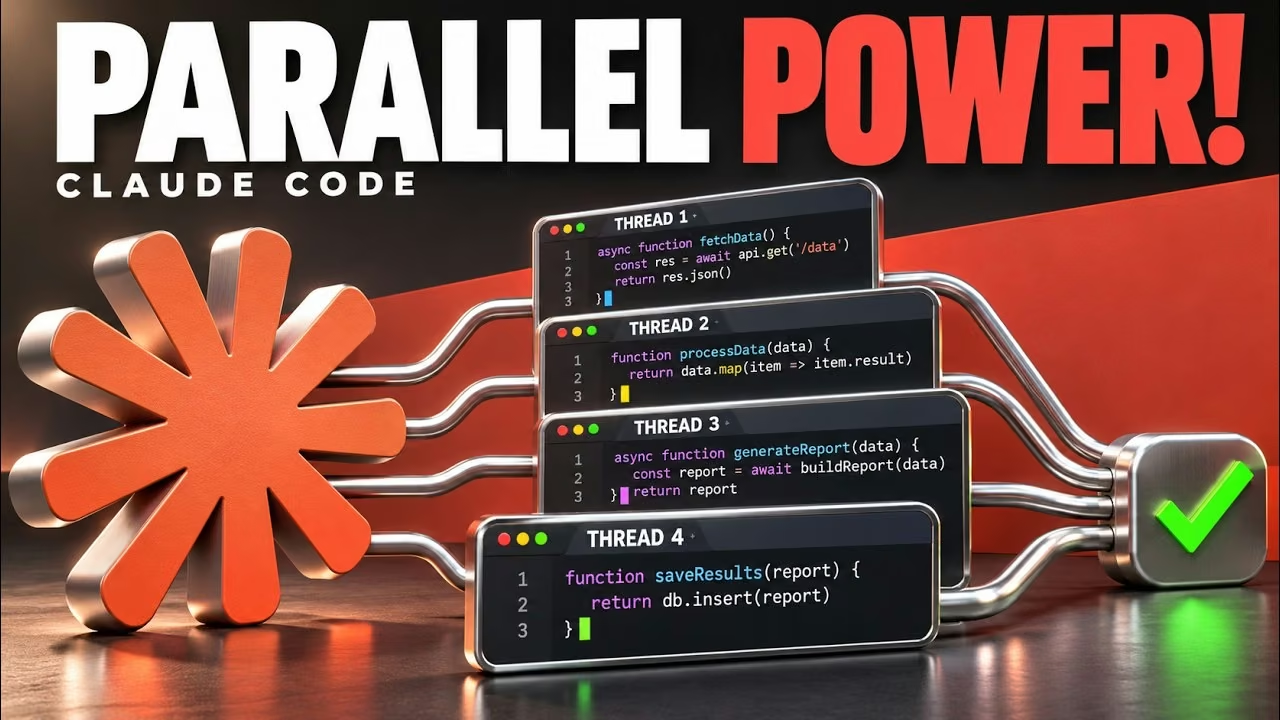
Against Claude Code Projects: Anthropic's approach, which we cover in our Claude Code Projects guide, uses a coordinating conversation that starts parallel cloud threads, each on its own branch, and decides the plan in natural language. Antigravity's workflows write the plan down as code. Claude Projects is better for an ongoing stream of related tasks over days; Antigravity workflows are better for a defined, repeatable batch job you want to rerun.
Against Claude Code subagents and scripted workflows: Claude Code has its own subagents, hooks and scripted multi-agent options. The ideas are converging fast: structured outputs, isolated worktrees and parallel fan-outs are now standard across the leading tools. Our best AI coding agents roundup compares them.
Against Cursor and Codex: Cursor and OpenAI's Codex app both run parallel agents, but neither exposes the orchestration as a reviewable script in the same way. Antigravity's approach is the most transparent of the three for repeatable jobs.
Against automation tools like n8n: visual workflow tools give you even more deterministic control, but each step is a fixed node. In an Antigravity workflow, each step is an agent that can read, reason and adapt. It sits between a rigid automation and a free-roaming agent.
Who Should Use It
- Good fit: developers who already use Google Antigravity and run the same reviews, migrations or checks across many files or packages.
- Good fit: team leads who want an AI process they can document, save in the repo and rerun.
- Good fit: technical marketers and analysts with repeatable research or audit jobs, provided they can read the script.
- Wait: anyone on a free plan, or teams that cannot yet review Python before approving it.
- Look elsewhere: open-ended exploration and design work, where a swarm,
/teamworkor a single strong agent will do better.
The Bottom Line
Dynamic Workflows are not the flashiest Antigravity feature, but they may be the most useful for teams. By letting the agent write its plan as a short, reviewable Python script, Google has turned "ask the AI and hope" into something closer to a normal engineering process: you can read it, approve it, save it and run it again.
The design choices are sensible. Structured results keep hand-offs clean, per-agent model choice keeps costs down, isolated worktrees stop parallel agents clashing, and approval covers the exact script rather than a broad rule. The gaps are published limits, the all-or-nothing behaviour of parallel(), and the fact that approval only protects you if someone actually reads the code.
Our advice: start with a read-only parallel review on Flash, save the script when it works, then graduate to fix-and-verify workflows in isolated branches. Keep "always allow" for scripts you have tested.
Last updated: 17/11/2026. Feature details from Google's Antigravity documentation as at 17/11/2026. Sterling conversion at approximately $1 = £0.79, excluding VAT.
Sources
- Google Antigravity documentation: Dynamic Workflows (/run-workflow)
- AlphaSignal: Google Antigravity Ships Dynamic Workflows to Run Parallel AI Coding Agents
- Hermes: Google Antigravity Ships Dynamic Workflows
- SiliconANGLE: Antigravity 2.0 launch coverage (19/05/2026)
- Julian Goldie SEO: Google Just Made AI Agents WAY More Powerful!
- Julian Goldie SEO: Google Antigravity Just Got Dynamic Workflows!
More from AI Tools Review: Antigravity 2.0 /plan review, Antigravity skills guide, Gemini 4 Carbon and /swarm, agent swarms explained, Claude Code Projects. Tools: Google Antigravity 2, Claude Code, Cursor, GitHub Copilot.